Advanced Date Operations
Power-user date operations for complex scenarios. Set absolute dates, extract from filenames, auto-fix inconsistencies, interpolate missing dates, and scrub metadata for privacy.

Beyond Offset and Sync
Parts 1 and 2 covered the fundamentals: copying, offsetting, and syncing dates. Those operations solve most problems—when you know what the correct date should be.
But what about:
- Photos with no dates at all?
- Dates embedded in filenames?
- Detecting which files have problems?
- Calculating dates for burst sequences?
- Stripping dates for privacy?
This is where the advanced operations come in.
What You’ll Learn
This guide covers the power-user date operations:
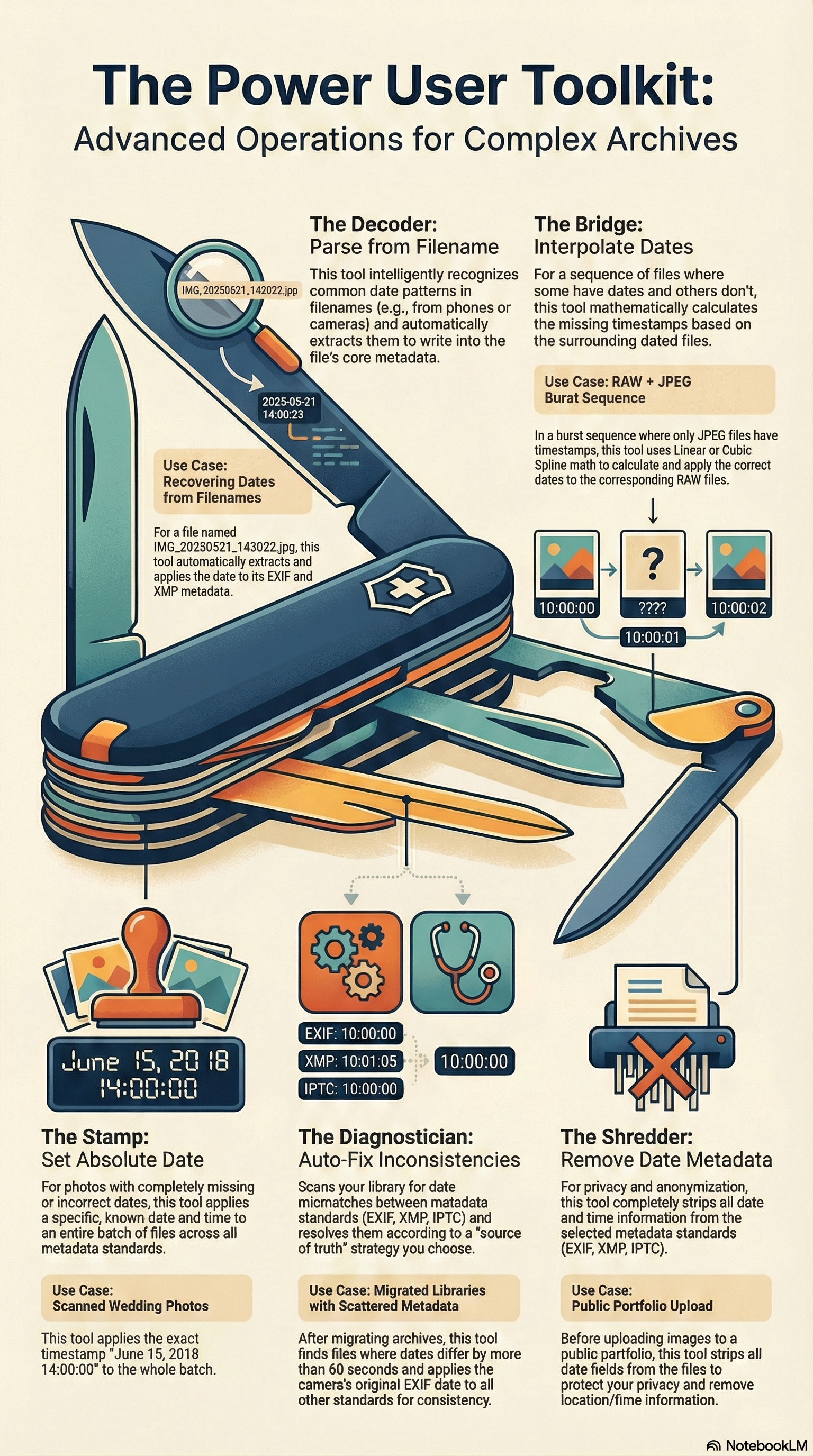
- Set Absolute Date — Stamp a specific date on files
- Parse from Filename — Smart pattern recognition
- Extract from Filename — Custom pattern extraction
- Auto-Fix Inconsistencies — Detect and resolve mismatches
- Remove Date Metadata — Strip dates for privacy
- Interpolate Dates — Calculate missing dates
Operation 1: Set Absolute Date
The scenario: You scanned 50 photos from your wedding. You know the date: June 15, 2018. But every file has today’s date.
The solution: Stamp a specific date on all selected files.
How It Works
Set Absolute Date lets you specify an exact date and time—down to the second—and apply it to all selected files.
Input Methods
- Graphical picker: Click to select date and time
- Direct entry: Type an ISO 8601 timestamp (2018-06-15T14:30:00)
Target Options
Choose which standards receive the date:
- EXIF (DateTimeOriginal, CreateDate, ModifyDate)
- XMP (DateCreated, ModifyDate)
- IPTC (DateCreated, TimeCreated)
- Filesystem (Created, Modified)
When to Use
- Scanned photos from known events
- Historical archives with documented dates
- Test images needing consistent timestamps
- Photos with completely wrong/missing dates
Step-by-Step
- Select photos from the same event
- Open Batch Processing (⌘⇧B)
- Choose Set Absolute Date
- Enter the date: 2018-06-15 14:30:00
- Select targets (typically all)
- Click Apply
Operation 2: Parse from Filename
The smart pattern recognizer.
The scenario: Your photos are named with date patterns from various sources:
IMG_20250521_143022.jpg(phone)DSC_0544_2025-05-21.NEF(camera)Screenshot 2025-05-21 at 14.30.22.png(macOS)
The solution: Let MetaScope recognize these patterns automatically.
Supported Patterns
| Pattern | Example | Extracted Date |
|---|---|---|
| IMG_YYYYMMDD_HHMMSS | IMG_20250521_143022.jpg | 2025-05-21 14:30:22 |
| DSC_YYYYMMDD | DSC_20250521.NEF | 2025-05-21 (time from EXIF or midnight) |
| YYYY-MM-DD HH.MM.SS | 2025-05-21 14.30.22.jpg | 2025-05-21 14:30:22 |
| Screenshot YYYY-MM-DD at HH.MM.SS | Screenshot 2025-05-21 at 14.30.22.png | 2025-05-21 14:30:22 |
| MOV_YYYYMMDD_HHMMSS | MOV_20250521_143022.mp4 | 2025-05-21 14:30:22 |
| VID_YYYYMMDD_HHMMSS | VID_20250521_143022.mp4 | 2025-05-21 14:30:22 |
Fallback Options
When a pattern provides date but not time:
- Use midnight (00:00:00): Default, safe option
- Use existing EXIF time: Combines filename date with EXIF time
Non-Matching Files
Files that don’t match any pattern are skipped, not failed. You can run Parse from Filename on mixed selections without errors.
Step-by-Step
- Select photos with date-based names
- Open Batch Processing (⌘⇧B)
- Choose Parse from Filename
- Select targets: EXIF, XMP, IPTC, Filesystem
- Choose fallback time option
- Click Apply
Operation 3: Extract from Filename
The manual pattern tool.
For filenames that don’t match standard patterns, Extract from Filename lets you define custom extraction rules.
When to Use
- Non-standard naming conventions
- Custom organizational schemes
- Legacy file naming patterns
How It Differs from Parse
- Parse from Filename: Automatic recognition of common patterns
- Extract from Filename: You provide the pattern to match
Operation 4: Auto-Fix Inconsistencies
The smart diagnostician.
The scenario: Your photo library has been through multiple applications, exports, and migrations. Dates are scattered: EXIF says one thing, XMP says another, IPTC is blank, and the filesystem is wrong.
The solution: Let MetaScope detect mismatches and resolve them with a strategy you choose.
How It Works
- MetaScope scans all selected files
- Compares dates across EXIF, XMP, IPTC, and filesystem
- Identifies files where dates disagree beyond your tolerance
- Previews which files have issues
- Applies your chosen resolution strategy
Strategy Options
| Strategy | Behavior |
|---|---|
| Use EXIF Date | Trust the camera’s original timestamp |
| Use XMP Date | Trust Adobe/Lightroom metadata |
| Use IPTC Date | Trust agency workflow dates |
| Use Oldest Date | Pick the earliest date across all standards |
| Use Newest Date | Pick the most recent date |
Configurable Tolerance
What counts as a “mismatch”? You decide.
- 60 seconds (default): Anything more than a minute apart
- 120 seconds: Allow 2-minute drift (common for burst processing)
- 300 seconds: Allow 5-minute drift (for loosely organized archives)
Dates within tolerance are considered matching.
Preview Before Apply
Before committing, you see:
- Which files have inconsistencies
- What each standard currently says
- What the resolved date will be
Step-by-Step
- Select your archive (or a folder to check)
- Open Batch Processing (⌘⇧B)
- Choose Auto-Fix Inconsistencies
- Set tolerance: 60 seconds
- Choose strategy: Use EXIF Date
- Select targets: XMP + IPTC + Filesystem
- Preview the results
- Click Apply
Operation 5: Remove Date Metadata
The privacy operation.
The scenario: You’re preparing images for a public portfolio. You don’t want capture dates visible—they could reveal when and where you were.
The solution: Strip all date metadata.
What It Removes
| Standard | Fields Removed |
|---|---|
| EXIF | DateTimeOriginal, CreateDate, ModifyDate, SubSecTime, OffsetTime |
| XMP | DateCreated, CreateDate, ModifyDate |
| IPTC | DateCreated, TimeCreated, DigitalCreationDate |
Filesystem Option
Optionally reset filesystem dates to Unix epoch (January 1, 1970) for complete anonymization.
Warning
This operation is destructive. Removed dates cannot be recovered. Work on copies if you need to preserve originals.
When to Use
- Preparing images for anonymous sharing
- Stripping metadata before public upload
- Removing dates before re-dating from a different source
Step-by-Step
- Select images to anonymize
- Open Batch Processing (⌘⇧B)
- Choose Remove Date Metadata
- Select targets: EXIF, XMP, IPTC
- Optionally: Reset filesystem to epoch
- Confirm the warning
- Click Apply
Operation 6: Interpolate Dates
The sequence solver.
The scenario: You have a sequence of 50 files—a rapid burst or time-lapse. Some files have dates (JPEGs exported from your camera). Others don’t (sidecar files, RAW conversions).
The solution: Calculate missing dates based on files that do have dates.
Interpolation Methods
| Method | How It Works | Best For |
|---|---|---|
| Linear | Proportional position between references | Evenly spaced sequences |
| Exponential Decay | Weight toward closer reference points | Burst sequences (fast then slow) |
| Cubic Spline | Smooth curve through all references | Variable-speed sequences |
How It Works
- MetaScope identifies files with dates (reference points)
- Calculates timestamps for files without dates based on their position
- Previews calculated dates before applying
- Writes dates to your chosen standards
When to Use
- RAW+JPEG pairs where only JPEGs have EXIF
- Time-lapse sequences with gaps
- Burst captures with missing metadata
- Mixed format sequences
Step-by-Step
- Select the entire sequence (dated + undated files)
- Open Batch Processing (⌘⇧B)
- Choose Interpolate Dates
- Select method: Linear (most common)
- Select targets: EXIF, XMP
- Preview calculated timestamps
- Click Apply
Real-World Scenarios
Scenario 1: The Event Archive
200 photos from graduation. EXIF is correct, but half the files have wrong filesystem dates from copying.
Solution: Auto-Fix Inconsistencies
- Strategy: Use EXIF Date
- Tolerance: 120 seconds
- Target: Filesystem only
- Apply
Scenario 2: The Privacy Scrub
Preparing portfolio images for public upload. Don’t want dates visible.
Solution: Remove Date Metadata
- Select portfolio images
- Remove from: EXIF + XMP + IPTC
- Apply
Scenario 3: The RAW+JPEG Workflow
Camera shoots RAW+JPEG. JPEGs have dates, RAW files don’t.
Solution: Interpolate Dates
- Select all files in sequence
- Method: Linear
- Preview to verify
- Apply to RAW files
Scenario 4: The Filename Recovery
Old backup folder with photos named 2019-08-15_vacation_001.jpg but no metadata.
Solution: Parse from Filename
- Select folder
- Pattern matches
YYYY-MM-DDformat - Fallback: Use midnight
- Apply to all standards
The Power User Workflow
For complex archives, combine operations:
- First: Auto-Fix Inconsistencies to identify and resolve mismatches
- Then: Parse from Filename for files without any dates
- Then: Interpolate Dates for sequences with gaps
- Finally: Sync All Dates to ensure consistency
What’s Next
These advanced operations handle complex date scenarios. But what about video files? And timezone correction?
Part 4: Video Dates & Timezone Mastery covers:
- QuickTime metadata for video files
- Timezone offset correction
- Date consistency validation
- Video-specific workflows
The final piece of complete date management.
MetaScope’s batch operations support pause/resume and survive app restarts. Process millions of files with zero progress loss.