Getting Professional Metadata Access from Apple Photos
How to view, analyze, and export metadata from your iCloud Photos library without leaving the Apple ecosystem.
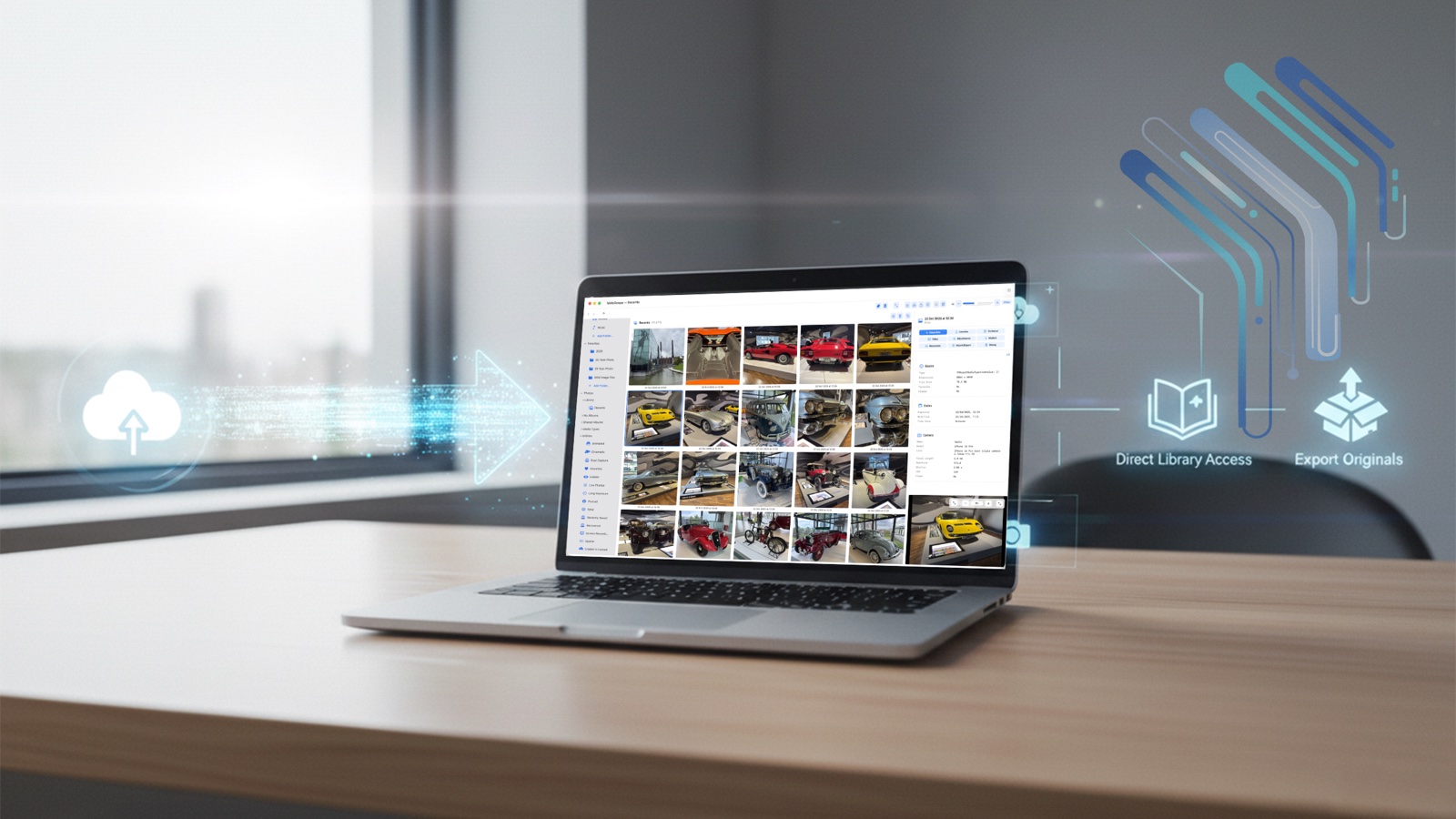
The iCloud Photos Dilemma
Apple Photos is beautiful. It syncs everywhere, the AI search is incredible, and family sharing works effortlessly. Your 180,000-photo library lives in iCloud, accessible on every device.
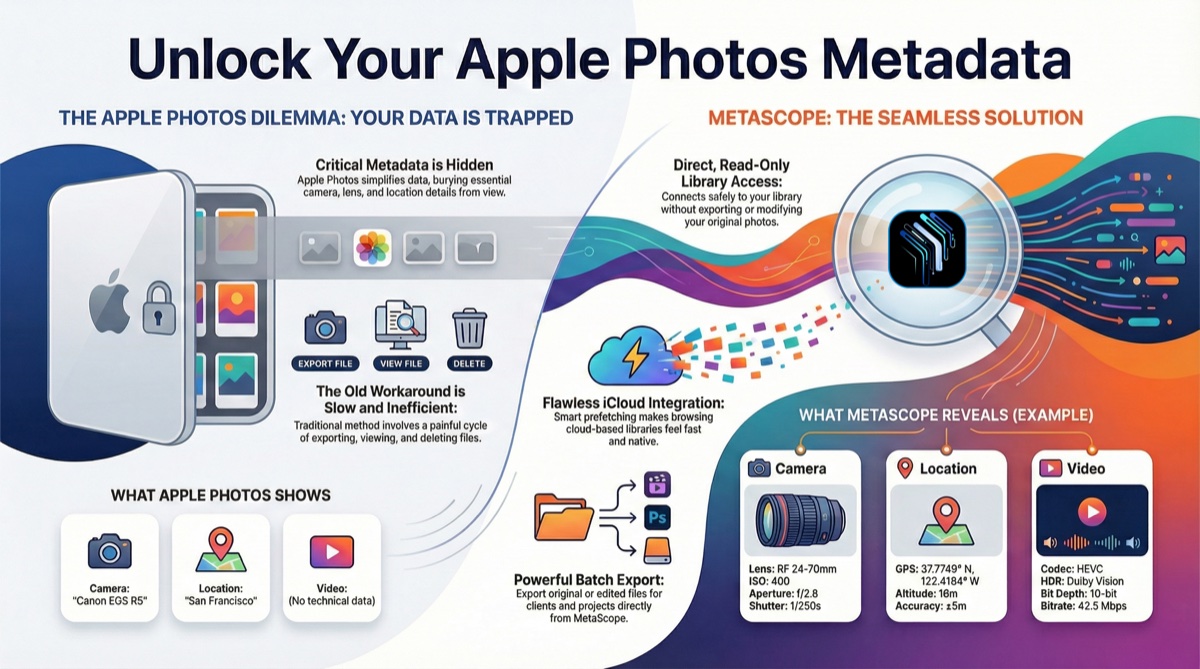
But Apple Photos has a secret: it hides your metadata.
Try finding the ISO of a photo. Or the exact GPS coordinates. Or the lens you used. Apple shows “Camera: iPhone 14 Pro” and calls it a day. The rich EXIF, IPTC, and XMP data embedded in your files? Buried. Inaccessible. Invisible.
The usual workaround is painful:
- Export photos from Photos.app
- Open in ExifTool or another metadata viewer
- View the data
- Delete the export
- Repeat for every photo
MetaScope’s native Photos integration eliminates this dance.
Direct Library Access: No Export Required
MetaScope connects directly to your Photos library using Apple’s PhotoKit framework, the same API that Photos.app itself uses.
What this means:
- Browse albums and photos without leaving MetaScope
- View full metadata without exporting files
- Access iCloud photos with automatic download handling
- See everything Photos hides: Full EXIF, GPS coordinates, lens data, video codecs, HDR information
No duplicated files. No export/import dance. Just direct access to your existing library.
The Authorization Flow
First time you connect, MetaScope requests Photos access. You’ll see Apple’s standard permission dialog. Grant access, and you’re in.
MetaScope uses read-only access. It can view your photos and metadata but won’t modify your Photos library. Your original files remain untouched, managed entirely by Photos.app.
iCloud Downloads: The Smooth Experience
Here’s where most third-party apps fail: iCloud photos.
If you use “Optimize Mac Storage” (and with 180,000 photos, who doesn’t?), most photos exist only in iCloud. When you view them in Photos.app, Apple downloads them seamlessly in the background. It feels instant.
Third-party apps? They usually show a spinner and make you wait. Or worse, they fail silently.
MetaScope’s Download System
MetaScope implements a sophisticated download manager that makes iCloud feel native:
Progress Tracking
- Real-time download progress (percentage and bytes)
- Estimated time remaining for large files
- Visual indicator in the UI, so you always know what’s happening
Smart Prioritization Every download gets a priority level:
- User-initiated (highest): You clicked on it, you want it now
- High: Visible in the current viewport
- Medium: Adjacent to what you’re viewing (prefetch buffer)
- Low: Background prefetch for smooth scrolling later
When you’re scrolling through thumbnails, MetaScope doesn’t try to download everything at once. It focuses on what you’re looking at, then works outward.
Retry Logic Network hiccups happen. MetaScope doesn’t just fail:
- Automatic retry with exponential backoff (1s, 2s, 4s delays)
- Up to 3 retry attempts
- Clear error messages when something genuinely can’t be downloaded
- Distinguishes between “try again later” errors and “this will never work” errors
Error Categorization When downloads fail, MetaScope tells you why:
- iCloud errors: “Photo is being processed by iCloud, try again shortly”
- Permission errors: “Photos library access needed”
- Storage errors: “Not enough local storage to download original”
- Network errors: “Check your internet connection”
No mysterious failures. No silent spinning.
Smart Prefetch: Scroll Without Waiting
The real magic is adaptive prefetching.
When you browse your Photos library in MetaScope, it doesn’t just load what’s on screen. It looks ahead, downloading thumbnails and metadata for photos you might view next.
How Prefetch Works
- Viewport Analysis: MetaScope knows which photos are visible
- Buffer Zone: It prefetches 1-2 screens ahead in your scroll direction
- Priority Queue: Visible items get high priority; buffer items get medium/low
- Adaptive Batching: Based on network conditions, it adjusts how many items to prefetch at once
Network-Aware Intelligence
Prefetch adapts to conditions:
- Fast, reliable network: Larger batch sizes (up to 30 items), aggressive prefetching
- Slow or unreliable network: Smaller batches (5-10 items), conservative approach
- Network unavailable: Prefetch pauses entirely, resumes when connected
- Low Power Mode: Prefetch disabled to preserve battery
The Result
Scrolling through your iCloud library feels smooth. By the time you scroll to a photo, its thumbnail and basic metadata are already loaded. Click to view full metadata? It’s usually already downloading or cached.
The experience approaches native Photos.app fluidity, remarkable for a third-party app accessing iCloud content.
Metadata Depth: What Photos Won’t Show You
This is the core value of using MetaScope with Photos. The metadata access is comprehensive.
Camera & Technical Data
What Apple shows: “Canon EOS R5”
What MetaScope shows:
- Make: Canon
- Model: Canon EOS R5
- Lens: Canon RF 24-70mm F2.8 L IS USM
- Focal Length: 50mm
- Aperture: f/2.8
- Shutter Speed: 1/250 sec
- ISO: 400
- Flash: Did not fire
- Metering Mode: Evaluative
- White Balance: Auto
Every technical detail your camera recorded, surfaced.
Location Data
What Apple shows: “San Francisco”
What MetaScope shows:
- GPS Latitude: 37.7749° N
- GPS Longitude: 122.4194° W
- GPS Altitude: 16 meters
- Horizontal Accuracy: ±5 meters
Precise coordinates you can plot on a map or use for geotagging projects.
Video Technical Metadata
For videos, MetaScope goes deep:
- Video Codec: HEVC (H.265)
- Audio Codec: AAC
- Resolution: 3840×2160
- Frame Rate: 23.976 fps (or variable frame rate detection)
- Bitrate: 42.5 Mbps
- HDR Format: HLG / HDR10 / Dolby Vision
- Color Primaries: BT.2020
- Bit Depth: 10-bit
- Chroma Subsampling: 4:2:0
If you’re a video editor, this information is essential for understanding what you’re working with before you import into your NLE.
Adjustment Information
Edited a photo in Photos, Snapseed, Darkroom, or another app? MetaScope detects it:
- Has Adjustments: Yes
- Adjustment Format: com.apple.photos / org.snapseed.editor / etc.
- App Origin: “Edited in Snapseed” / “Edited in Darkroom”
- Adjustment Data Size: 12.4 KB
You can see which photos have been edited and by what app. Useful for tracking your workflow or identifying which images need a fresh edit.
Export Originals: When You Need the Files
Sometimes you do need the actual files. Client requests the RAW. Editor needs the original video. Agency wants uncompressed TIFFs.
MetaScope’s export functionality handles this cleanly:
Export Types
Original Export
- Exports the exact original file (RAW, HEIC, MOV, etc.)
- No compression, no modifications
- Includes all embedded metadata
- Downloads from iCloud if not locally available (with progress tracking)
Current Version Export
- Exports with your Photos edits baked in
- High-quality JPEG or HEIF for photos
- Highest-quality preset for videos
Batch Export
Select multiple photos or entire albums. Export them all at once:
- Choose destination folder
- Progress tracking for the full batch
- Failures handled gracefully (continues with remaining files)
The Convenience Factor
Instead of manually exporting from Photos.app every time you need files, browse in MetaScope, select what you need, and export directly. The iCloud download and file export happen as one smooth operation.
Connection Resilience: The Invisible Reliability
Here’s something you’ll never notice if it’s working correctly: connection recovery.
The Problem
macOS aggressively terminates background processes to save resources. The Photos daemon can be killed during extended sleep or memory pressure. When this happens, apps holding PhotoKit connections suddenly can’t access anything.
Most apps: crash, hang, or show cryptic errors.
MetaScope’s Solution
MetaScope implements multi-layer connection recovery:
Detection Methods
- Apple’s official availability observer (fastest)
- System sleep/wake notifications
- Screen lock/unlock events
- App activation monitoring
Recovery Process When a connection drops:
- Detect the failure (often before you notice)
- Wait for system stabilization (daemon restart takes a few seconds)
- Create fresh connection
- Resume operations seamlessly
What You Experience
You close your MacBook for lunch. Open it. Switch to MetaScope. Your Photos library is right there, working normally.
Behind the scenes, MetaScope detected the sleep, noticed the daemon restart, recovered the connection, and refreshed the view. All in the few seconds between opening your laptop and clicking the app.
The best reliability feature is the one you never notice.
Example Workflows
Morning Review
- Open MetaScope, switch to Photos mode
- Browse recent imports
- Check technical metadata: “Did I nail focus? What settings did I use?”
- Star favorites for later editing
Client Requests
- Client asks for specific photos from an event
- Search in MetaScope (by date, album, or visual browsing)
- View full metadata to confirm they’re the right files
- Export originals directly to a delivery folder
- Send to client
Portfolio Updates
- Browse your “Best Of” album
- Check metadata completeness (do these have proper descriptions?)
- Export selects for portfolio PDF
- Create HTML gallery for web
Gear Analysis
- Open Analytics Dashboard
- Filter to last 3 months
- Check which cameras/lenses you’ve actually used
- Cross-reference with Photos albums to see results
What MetaScope Doesn’t Do (By Design)
To be clear: MetaScope is read-only for Photos libraries.
You cannot:
- Edit metadata and write it back to Photos
- Delete photos from your library
- Modify albums or organization
- Apply changes to the original files in iCloud
This is intentional. Photos.app owns your library. MetaScope provides a window into it: deep, comprehensive access for viewing and exporting, but doesn’t try to replace Photos for library management.
If you need to edit metadata, export the files, edit in MetaScope’s file-based mode, then re-import to Photos if desired. Your iCloud library stays clean and Apple-managed.
The Best of Both Worlds
You don’t have to choose between Apple’s beautiful, synced ecosystem and professional metadata tools.
Keep your photo library in iCloud Photos, enjoying the seamless sync, AI search, and family sharing. When you need professional metadata access (technical details, GPS coordinates, export for clients) MetaScope provides it without leaving the Apple ecosystem.
Your library lives in Photos. Your metadata workflow lives in MetaScope. They coexist perfectly.
Tips for Photos Power Users
-
Keep “Optimize Mac Storage” enabled. MetaScope’s iCloud download handling is smooth enough that you don’t need full local copies. Save disk space.
-
Use albums for organization. MetaScope browses your album structure. Well-organized albums make navigation faster.
-
Check video metadata before editing. Know the codec, resolution, and HDR format before importing into Premiere or Final Cut. No surprises in the timeline.
-
Export batches to a dedicated folder. Create an “Exports” folder for MetaScope output. Keeps your Downloads folder clean.
-
Trust the prefetch. Scroll naturally. MetaScope is loading ahead of you. Don’t wait for every thumbnail, it’s probably already cached.
For the iCloud Skeptics
Some photographers avoid iCloud. “I need local files.” “I don’t trust the cloud.” “Third-party apps can’t access it properly.”
Valid concerns historically. But MetaScope’s Photos integration is production-grade. The iCloud download handling works reliably. The connection recovery handles system quirks gracefully. The metadata access is comprehensive.
If you’ve been holding back from iCloud Photos because third-party support was poor, it might be time to reconsider.
MetaScope’s Photos integration works with any iCloud Photos library on macOS. Requires Photos access permission. Export originals requires local storage for downloaded files.