Mastering Stackable Batch Rename: Advanced Techniques
Deep dive into advanced batch rename techniques. Create custom rule stacks, use regex patterns, extract metadata, and handle naming conflicts like a pro.

In Part 1, we introduced MetaScope’s stackable batch rename and its built-in presets. Now let’s explore advanced techniques that transform this tool from convenient to indispensable.
Building Custom Rule Stacks
The built-in presets are starting points, not limits. Let’s build some real-world naming conventions from scratch.
Example 1: Event Photography Workflow
For event shoots, you might want: EventName_Date_Camera_Sequence
Rule Stack:
- Remove Text (First 999) — Clear the original filename
- Insert Text — Add “Wedding_Johnson” at start
- Insert Text — Add ”_” at end
- Date from Metadata — EXIF date in
YYYY-MM-DDformat - Insert Text — Add ”_” at end
- Metadata Field — Camera model
- Insert Text — Add ”_” at end
- Counter — 4-digit padding, starting at 1
Result:
DSC_0523.NEF → Wedding_Johnson_2024-03-15_NIKON Z6_0001.NEFExample 2: Stock Photography Submission
Stock agencies often require: keyword_keyword_sequence.jpg
Rule Stack:
- Remove Text (First 999) — Start fresh
- Insert Text — Add your keywords: “sunset_beach_california”
- Insert Text — Add ”_” at end
- Counter — 3-digit sequence
Result:
IMG_4872.jpg → sunset_beach_california_001.jpgExample 3: Archive Organization by Camera + Year
For long-term archives: CameraModel_Year_OriginalName
Rule Stack:
- Metadata Field — Camera model at start
- Insert Text — Add ”_” at position after camera
- Date from Metadata — Year only format (
YYYY) - Insert Text — Add ”_” at end
- (Original filename is preserved and appended)
Result:
DSC_0523.NEF → NIKON Z6_2024_DSC_0523.NEF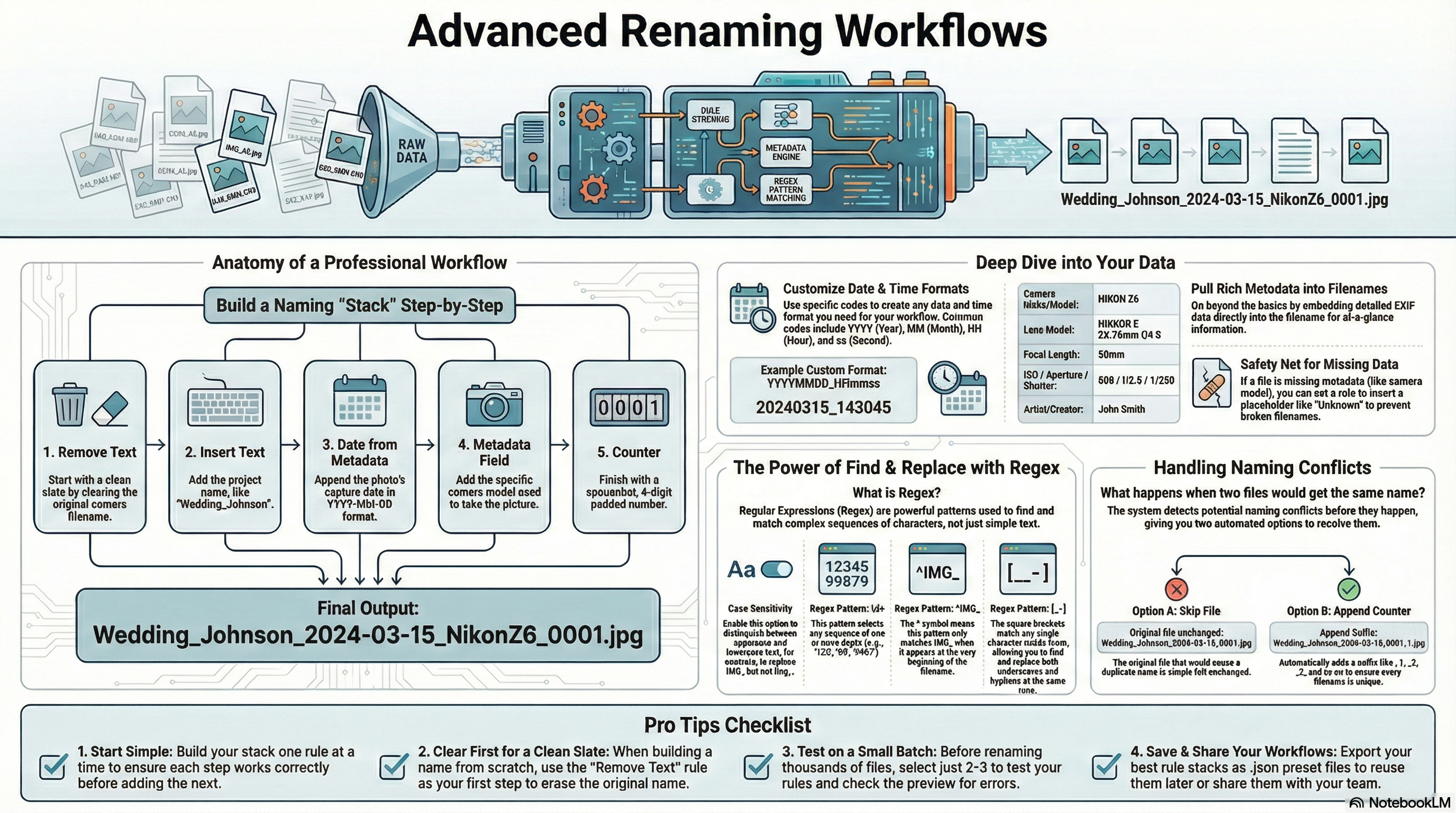
Date Format Mastery
The Date from Metadata rule is incredibly flexible. MetaScope offers preset formats and custom patterns:
Preset Formats
| Preset | Example Output |
|---|---|
| ISO | 2024-03-15 |
| US | 03-15-2024 |
| EU | 15-03-2024 |
| Compact | 20240315 |
| Year Only | 2024 |
| Month-Year | 2024-03 |
Custom Date Patterns
Need something specific? Use format codes:
| Code | Meaning | Example |
|---|---|---|
YYYY | 4-digit year | 2024 |
YY | 2-digit year | 24 |
MM | Month (01-12) | 03 |
DD | Day (01-31) | 15 |
HH | Hour (00-23) | 14 |
mm | Minute (00-59) | 30 |
ss | Second (00-59) | 45 |
Custom format YYYYMMDD_HHmmss produces: 20240315_143045
Handling Missing Dates
What if a file has no EXIF date? You have options:
- Skip file — Leave it unchanged
- Use placeholder — Insert “NoDate” or custom text
- Use file date — Fall back to filesystem modification date
Metadata Field Deep Dive
Beyond camera model, you can pull many fields into your filenames:
Available Metadata Fields
| Field | Example Value |
|---|---|
| Camera Model | NIKON Z6 |
| Camera Make | NIKON CORPORATION |
| Lens Model | NIKKOR Z 24-70mm f/4 S |
| Focal Length | 50mm |
| ISO | 800 |
| Aperture | f/2.8 |
| Shutter Speed | 1/250 |
| Artist/Creator | John Smith |
Placeholder for Missing Data
If metadata is missing, you can specify a placeholder:
- Camera Model missing → Uses “Unknown” (or your custom text)
This prevents broken filenames when metadata isn’t available.
Find & Replace: Simple to Surgical
The Find & Replace rule handles everything from simple text swaps to complex pattern matching.
Simple Replacements
| Find | Replace | Before → After |
|---|---|---|
IMG_ | Photo_ | IMG_0001 → Photo_0001 |
(space) | _ | My Photo → My_Photo |
- | _ | 2024-03-15 → 2024_03_15 |
Case Sensitivity
Enable Case Sensitive to match exactly:
- Find “IMG” with case sensitive ON: matches
IMG_001but notimg_001 - Find “IMG” with case sensitive OFF: matches both
Regex Patterns
For power users, enable Use Regex for pattern matching:
| Pattern | What It Matches |
|---|---|
\d+ | Any sequence of digits |
^IMG_ | ”IMG_” only at the start |
_\d{4}$ | Underscore + 4 digits at end |
[_-] | Either underscore or hyphen |
Example: Remove all numbers from filenames
- Find:
\d+(regex) - Replace: (empty)
- Result:
Photo_0001_final→Photo__final
Handling Naming Conflicts
When two files would get the same name, MetaScope detects it before you rename:
Conflict Resolution Options
- Skip — Files that would conflict are left unchanged
- Append Counter — Automatically adds
_1,_2, etc.
Example with Append Counter:
DSC_0001.jpg → Photo_001.jpg
DSC_0002.jpg → Photo_001.jpg  ← Conflict!
                ↓
              Photo_001_1.jpg  ← Auto-resolved
The conflict indicator appears in the preview, so you can decide before committing.
Workflow Examples by Genre
Portrait Photographer
Naming convention: ClientName_SessionDate_Sequence
Stack:
- Remove Text (clear original)
- Insert “Smith_Family” at start
- Insert ”_” at end
- Date from Metadata (YYYY-MM-DD)
- Insert ”_” at end
- Counter (001, 002, …)
Save as preset: “Client Session Template”
For each new client, duplicate the preset and change the client name.
Landscape Photographer
Naming convention: Location_Date_CameraModel
Stack:
- Remove Text (clear original)
- Insert “Yosemite” at start
- Insert ”_” at end
- Date from Metadata (compact: YYYYMMDD)
- Insert ”_” at end
- Metadata Field (camera model)
Tip: Create location-specific presets for places you shoot frequently.
Event Photographer
Naming convention: Event_Year_Camera_Sequence
Stack:
- Remove Text (clear original)
- Insert “Johnson_Wedding” at start
- Insert ”_” at end
- Date from Metadata (year only)
- Insert ”_” at end
- Metadata Field (camera model)
- Insert ”_” at end
- Counter (4-digit)
Pro tip: Use the counter’s “Reset per Folder” option when shooting multiple events in subfolders.
Saving and Sharing Presets
Once you’ve built the perfect rule stack, save it as a preset:
- Click Save as Preset
- Give it a descriptive name
- Your preset appears in the preset dropdown
Exporting Presets
Share your presets with colleagues or across machines:
- Select your preset
- Click Export
- Save the
.jsonfile
Importing Presets
Received a preset file?
- Click Import
- Select the
.jsonfile - The preset is added to your collection
Pro Tips
Tip 1: Preview Before Committing
Always check the preview, especially with regex patterns. Toggle “Show Steps” to see exactly what each rule does.
Tip 2: Start Simple, Add Rules
Build your stack incrementally. Get one rule working, then add the next. It’s easier to debug than building everything at once.
Tip 3: Use Remove Text First for Clean Slates
When building filenames from scratch, start with “Remove Text (First 999)” to clear the original name completely.
Tip 4: Test on a Few Files First
Select just 2-3 files to test your rule stack before applying to hundreds.
Tip 5: Remember Undo Exists
You have 24 hours to undo any rename. Experiment confidently.
Quick Reference Card
| Want to… | Use This Rule |
|---|---|
| Add numbers (001, 002…) | Counter |
| Add capture date | Date from Metadata |
| Add camera/lens info | Metadata Field |
| Replace text | Find & Replace |
| Change case | Case Conversion |
| Add prefix/suffix | Insert Text |
| Remove characters | Remove Text |
| Clean up spaces | Trim Whitespace |
| Remove illegal chars | Sanitize |
Start Renaming
Stackable Batch Rename transforms chaotic camera filenames into organized, meaningful names that make sense months or years later. Whether you’re a wedding photographer processing thousands of images or a hobbyist organizing vacation photos, building the right rule stack takes minutes and saves hours.
Your move: Open MetaScope, select some files, and try the “Camera + Sequence” preset. Then modify it. Add a date. Change the format. Save your own preset. Once you experience the power of stackable rules, you’ll never go back to renaming files one pattern at a time.
Stackable Batch Rename is available in MetaScope 1.2.2 for macOS. Download from the Mac App Store or update your existing installation.