Controlled Vocabularies: Pro Keyword Management
MetaScope 1.2.4 adds controlled vocabularies with 600+ IPTC terms, intelligent suggestions, Finder sync, and CSV/JSON import for consistent keywords.

If you’ve ever spent hours tagging photos only to discover you used “sunset” in March but “golden hour” in April for the same type of shot, you know the challenge of maintaining consistent metadata. Multiply that across years of work, multiple team members, or client deliverables, and keyword inconsistency becomes a real liability.
Professional archives, photo agencies, and news organizations solved this decades ago with controlled vocabularies — standardized lists of approved terms that ensure everyone uses the same language. MetaScope 1.2.4 brings this professional-grade system to your desktop with 600+ industry-standard terms, intelligent suggestion engines, and tools to import your own vocabularies.
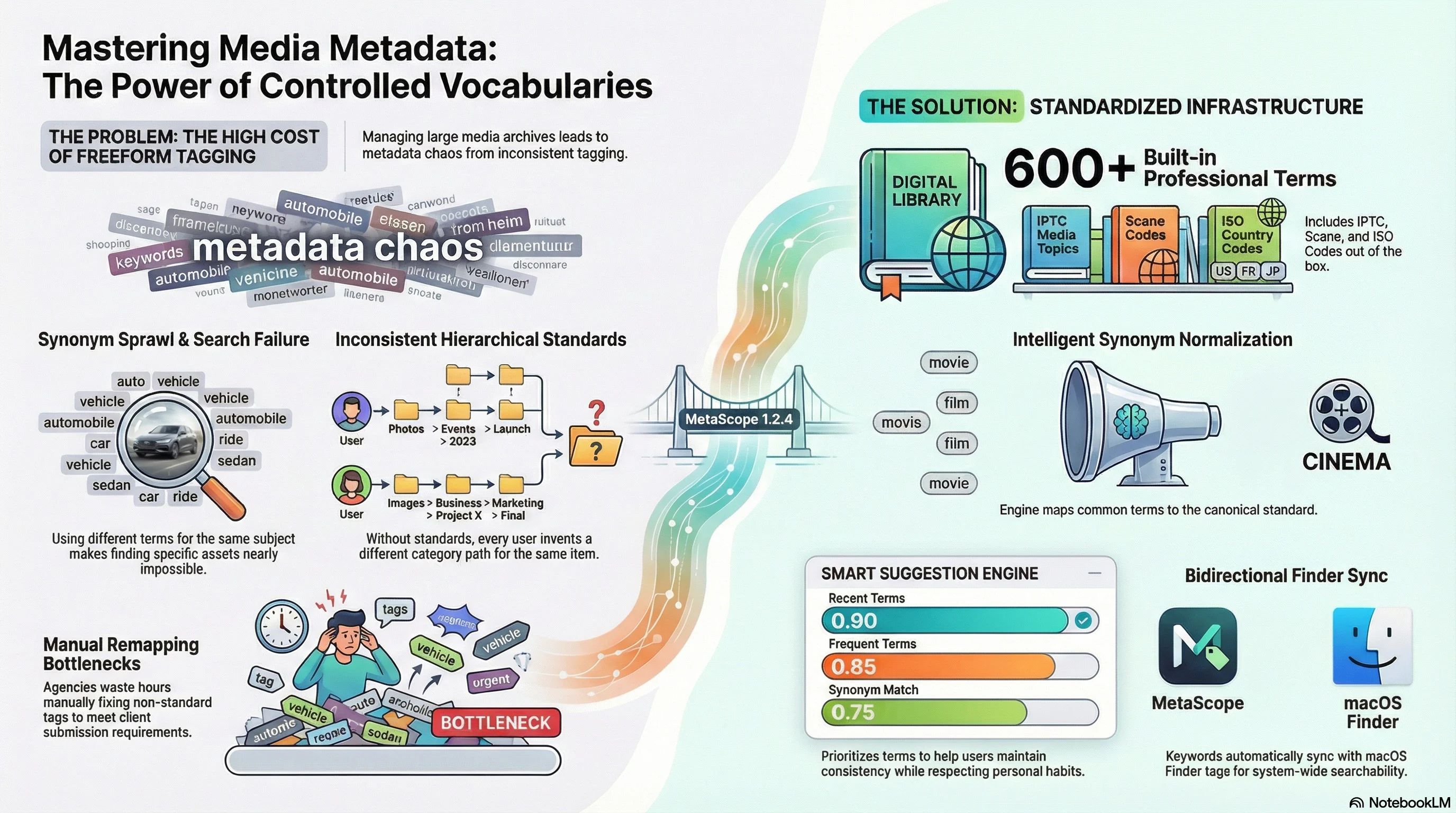
The Problem with Freeform Keywords
Most metadata tools let you type anything into a keyword field. That flexibility becomes a problem fast:
Synonym sprawl: One photographer tags “automobile,” another uses “car,” a third prefers “vehicle.” Search for “automobile” and you miss two-thirds of your automotive shots.
Inconsistent hierarchy: Should it be “Nature > Wildlife > Birds” or “Animals > Birds > Wild”? Without standards, every user invents their own system.
Language barriers: International teams struggle when keywords exist in multiple languages without clear mappings.
Non-standard terms: Client briefs require IPTC Subject Codes for news submissions, but freeform tagging doesn’t enforce the official vocabulary.
Example scenario:
A photo agency receives 500 images from a breaking news event. The photographer tagged half with “disaster,” a quarter with “natural disaster,” and the rest with specific terms like “flood” and “earthquake.” The agency’s CMS requires official IPTC Media Topic codes. Someone now needs to manually remap 500 images to the standard vocabulary before publication.
Without controlled vocabularies, this busywork is inevitable.
The Solution: Industry-Standard Vocabularies Built In
MetaScope 1.2.4 includes four professional vocabularies out of the box, totaling over 600 standardized terms:
1. IPTC Media Topics
The gold standard for news and editorial content. 17 top-level categories covering everything from “Arts, Culture, Entertainment and Media” to “Sport” and “Weather,” with approximately 170 hierarchical subcategories. Each term includes its official 8-digit IPTC Subject Code — essential for news wire submissions and agency workflows.
Example hierarchy:
Arts, Culture, Entertainment and Media (01000000)
  ├─ Photography (01013000)
  ├─ Cinema (01005000)
  │   └─ Synonyms: film, movie, motion picture
  └─ Music (01011000)
      └─ Synonyms: concert, musician, song
When you select “Cinema,” MetaScope automatically records the official IPTC code and recognizes synonyms like “film” or “movie” as equivalent terms.
2. IPTC Scene Codes
Describe the physical scene attributes: “aerial view,” “close-up,” “panoramic view,” “night scene.” These 31 terms with 6-digit codes complement subject terms by describing how something was photographed rather than what.
3. ISO 3166 Country Codes
All 249 countries with official ISO alpha-2 and alpha-3 codes. MetaScope treats “US,” “USA,” and “United States” as synonyms, ensuring search results never miss a file due to code vs. name discrepancies.
4. Common Keywords
A curated starter vocabulary of 200 photography terms organized into 8 practical categories: Nature, People, Urban, Events, Abstract, Time of Day, Weather, and Composition. Perfect for personal archives that don’t need IPTC compliance but benefit from consistent terminology.
Interactive Vocabulary Browser
Access the browser three ways:
- Tools menu: “Manage Vocabularies” (Cmd+Opt+V)
- Keyword field: Click the book icon for instant access
- Settings: Keywords tab > “Managed Vocabularies” button
The browser presents hierarchical vocabularies as expandable outlines — exactly like navigating folders. Flat vocabularies (like Scene Codes) display as simple lists. Each term shows:
- Primary term: The canonical name
- IPTC codes: Official subject or scene codes (if applicable)
- Synonym count: How many alternate terms map to this entry
- Translations: Available languages (with filter support)
- Usage frequency: Visual indicator for your most-used terms
Search across all vocabularies: Type “architecture” and MetaScope searches primary terms, synonyms, and translations simultaneously. Results show which vocabulary each match comes from, with instant navigation to the term’s location in the hierarchy.
Language-aware filtering: Working with multilingual content? Filter by language code (ISO 639-1) to see terms in French, German, Spanish, or any other language your vocabularies support. When a language filter is active, terms display their translation instead of the English primary term.
Import and Export Your Vocabularies
MetaScope supports two formats: CSV and JSON.
CSV Import
Perfect for spreadsheet-based vocabularies. The CSV parser follows RFC 4180 with support for:
- Hierarchical structure via parent column references
- Multiple synonyms in a single cell (comma-separated)
- IPTC code columns for subject and scene codes
- Translation columns for multilingual support
Example CSV:
term,parent,synonyms,iptcSubjectCode,translation_fr
Photography,,photo;photographer,01013000,Photographie
Portrait,Photography,headshot;portrait photography,,Portrait
Landscape,Photography,scenery;nature photography,,Paysage
MetaScope validates on import:
- No duplicates: Rejects vocabularies with duplicate terms
- Valid hierarchy: Ensures no orphaned children or circular references
- IPTC code format: Validates 6-digit scene codes and 8-digit subject codes
- File size limit: 10MB maximum to prevent accidental imports of malformed data
Validation failures provide clear feedback about what needs fixing before re-import.
JSON Export
For sharing vocabularies with colleagues or backing up custom work. The JSON schema is versioned (currently v1.0) with complete fidelity for hierarchies, synonyms, translations, codes, and usage statistics.
Export options:
- Single vocabulary or all vocabularies
- Include/exclude usage statistics
- Pretty-printed for human editing or compact for storage efficiency
Synonym Normalization and Intelligent Suggestions
Behind the scenes, MetaScope builds an inverted index that maps every synonym and translation back to its canonical term. When you type “movie” in a keyword field, the engine recognizes it as a synonym for “Cinema” and suggests the IPTC-standard term.
Multi-Source Suggestion Scoring
The keyword suggestion engine ranks suggestions from four sources, each with a different confidence weight:
| Source | Score | Use Case |
|---|---|---|
| Recent terms | 0.9 | You used this in the last 50 operations |
| Frequent terms | 0.85 | You use this often (top 20% by count) |
| Synonym match | 0.75 | Your typed text is a known synonym |
| Vocabulary match | 0.7 | Direct match in a controlled vocabulary |
Example: You type “sunset” in the keyword field. The engine returns:
- “Golden Hour” (score 0.9) — You used this 8 times in the last week
- “Sunset” (score 0.85) — Your most frequently used time-of-day term
- “Evening” (score 0.7) — Matches Common Keywords vocabulary
This scoring prevents vocabulary terms from overwhelming your personal patterns while still surfacing standardized options when appropriate.
Finder Metadata Write-Back
One of the biggest gaps in metadata workflows: the disconnect between specialized tools like MetaScope and macOS Finder. You meticulously tag files in MetaScope, then open Finder and see none of those keywords. Or you organize files with Finder tags, then import into MetaScope and lose that structure.
MetaScope 1.2.4 closes this gap with bidirectional Finder sync:
Keywords and Finder Tags
MetaScope writes IPTC keywords to Finder’s tag system (stored in com.apple.metadata:_kMDItemUserTags extended attribute). When you add “Landscape” as a keyword in MetaScope, it appears as a Finder tag. Tag a file in Finder with “Architecture,” and MetaScope syncs it into the IPTC Keywords field on next read.
Captions and Finder Comments
Long-form descriptions written in MetaScope’s Caption field sync to Finder’s Spotlight Comment field. Edit the comment in Finder’s Get Info panel, and MetaScope picks up the change.
Batch Sync and Loop Prevention
Navigate to Settings > Professional and click “Sync Now” to batch-process all selected files. The sync service detects loops (where syncing A to B would trigger B to A) and prevents infinite update cycles.
Vocabulary-Powered Keyword Rules
MetaScope 1.2.4 integrates controlled vocabularies directly into the Keyword Rules engine. This integration delivers four workflow enhancements:
1. Autocomplete from Vocabularies
Open the Keyword Rules editor and start typing in any keyword field. MetaScope queries all loaded vocabularies and presents matching terms in a dropdown:
- Keyboard navigation: Arrow keys to browse, Enter to insert
- Source badges: Visual indicators showing which vocabulary contains each suggestion
- Debounced search: Suggestions appear as you type without lag
2. Validation Hints
When you define a keyword rule, MetaScope validates terms against loaded vocabularies and displays inline hints. If your rule outputs “automobile” but the Common Keywords vocabulary uses “car” as the canonical term, you’ll see a non-blocking suggestion to use the standard term.
This validation is advisory, not enforcing — you can still use custom terms when needed, but you’re aware of deviations from standards.
3. Vocabulary Source Badges in Preview
After defining a rule, the preview panel shows which source each keyword comes from:
- IPTC Media Topics badge: Official news industry term
- Common Keywords badge: Standard photography term
- User-defined badge: Custom term not in any vocabulary
This visibility helps you audit rule outputs before applying them to thousands of files.
4. Rule Suggestions from Vocabularies
Click “Suggest from Vocabularies” in the Keyword Rules list, and MetaScope analyzes IPTC Media Topics to generate pre-built rules. For example:
Generated rule:
IF filename contains "concert" OR "musician" OR "song"
THEN add keyword "Music" (IPTC: 01011000)
The engine examines synonym mappings to create smart rules that catch variations automatically. Accept the suggestion, tweak if needed, and apply to your archive.
Professional Use Cases
Photo Agencies and Wire Services
Challenge: Submissions to news wires require IPTC Subject Codes. Freeform tagging forces manual remapping.
Solution: Use IPTC Media Topics vocabulary exclusively. Every keyword gets an official 8-digit code automatically. Export metadata with confidence that it meets wire service standards.
Museum and Archival Cataloging
Challenge: Multi-decade archives span hundreds of catalogers with inconsistent terminology. New staff misinterprets legacy keywords.
Solution: Import the institution’s controlled vocabulary (often based on Getty AAT or custom thesauri). Lock down keyword entry to approved terms. New catalogers browse the vocabulary instead of inventing terms.
Stock Photography Workflows
Challenge: Stock agencies reject uploads with non-standard keywords. Contributors waste time researching each agency’s vocabulary.
Solution: Import agency-provided vocabularies (many agencies publish CSV exports). MetaScope validates keywords before export, catching violations early.
International Production Teams
Challenge: Photographers in five countries tag in their native languages. Central editors waste hours translating and normalizing.
Solution: Use multilingual vocabularies with translation mappings. Photographer tags “Architektur” (German), MetaScope recognizes it as equivalent to “Architecture,” and exports using the English canonical term for agency submission.
Getting Started with Controlled Vocabularies
Step 1: Explore Built-In Vocabularies
- Press Cmd+Opt+V to open the Vocabulary Browser
- Click “All Vocabularies” dropdown and select “IPTC Media Topics”
- Expand the “Arts, Culture, Entertainment and Media” category
- Notice the 8-digit codes and synonym counts
- Use the search bar to find “photography” — see how it finds the term and its synonyms
Step 2: Apply a Vocabulary Term
- Select a photo in the main browser
- Click the book icon next to the Keywords field in the Info Panel
- Search for a relevant term (e.g., “landscape” if it’s a nature shot)
- Click the term to add it as a keyword
- Notice MetaScope records the canonical term even if you searched via a synonym
Step 3: Enable Finder Sync
- Open Settings > Professional
- In the Finder Metadata Sync section, click “Sync Now”
- MetaScope writes your keywords to Finder tags
- Open Finder and press Cmd+I on the same photo — see the tags appear
Step 4: Import a Custom Vocabulary (Optional)
- Prepare a CSV with columns:
term,parent,synonyms,iptcSubjectCode - In Vocabulary Browser, click “Import”
- Select your CSV file
- Review validation feedback
- Click “Import Vocabulary” if validation passes
Step 5: Integrate with Keyword Rules
- Open Tools > Keyword Rules (Cmd+Opt+K)
- Create a new rule with a filename pattern (e.g.,
*concert*) - In the “Add Keywords” field, start typing “music”
- Select “Music” from the IPTC Media Topics autocomplete
- Save the rule and test on matching files
Pro Tips
Track usage to surface your most-used terms: The browser’s usage frequency display highlights which vocabulary terms you rely on most. Use this to audit whether your tagging aligns with your claimed specialties or to spot overused generic terms.
Export vocabularies as project documentation: When delivering archived projects to clients, export the vocabulary you used as JSON. Clients can import it to maintain your taxonomy when adding future content.
Combine vocabularies strategically: Use IPTC Media Topics for subject matter, IPTC Scene Codes for composition/lighting, and Common Keywords for stylistic attributes. The three systems complement rather than compete.
Language filters for location-specific imports: If you import geotagged content from international photographers, use language filters to review keywords in the photographer’s native language before normalizing to English for your archive.
Finder sync as a backup strategy: Because Finder tags persist in macOS’s Spotlight index even if MetaScope’s database is lost, they serve as a lightweight metadata backup layer. Sync important keywords bidirectionally for resilience.
The Bigger Picture: Metadata as Infrastructure
Controlled vocabularies are more than a tagging convenience — they’re infrastructure for findability. Every hour spent defining vocabularies returns multiples in search accuracy, team coordination, and compliance with industry standards.
MetaScope’s implementation respects the decades of work behind standards like IPTC NewsCodes while remaining flexible enough for custom workflows. Whether you’re managing a personal archive of 10,000 photos or coordinating a team cataloging 500,000 historical documents, the vocabulary system scales to your needs.
The 600+ built-in terms give you a professional foundation on day one. CSV/JSON import lets you bring institutional knowledge into MetaScope. Synonym normalization ensures you benefit from standards without abandoning familiar terms. And Finder integration bridges the gap between specialized tools and everyday macOS workflows.
What’s Next
This vocabulary system is part of MetaScope’s Professional Metadata Workspace Initiative. Future updates will explore:
- Custom metadata fields: Define your own fields beyond the IPTC/EXIF standard registry
- Label sets: Visual color-coding systems for rapid triage and selection
- Linked fields: Auto-populate related fields (e.g., GPS coordinates trigger city name)
- Custom panels: Group fields into domain-specific editing interfaces
MetaScope 1.2.4 also includes vocabulary-aware keyword rules, a completely upgraded search window with grid/list/density controls, editable technical EXIF fields, and GPS date management. See the full release notes for details.
Controlled Vocabularies are available in MetaScope 1.2.4, available now on the Mac App Store. Try the 14-day free trial or upgrade if you’re already a subscriber.
Explore more: