Fix Your Photo Dates: The Basics
The foundational date operations every photographer needs. Learn to restore corrupted filesystem dates from EXIF metadata and shift dates by fixed amounts for scanned photos.
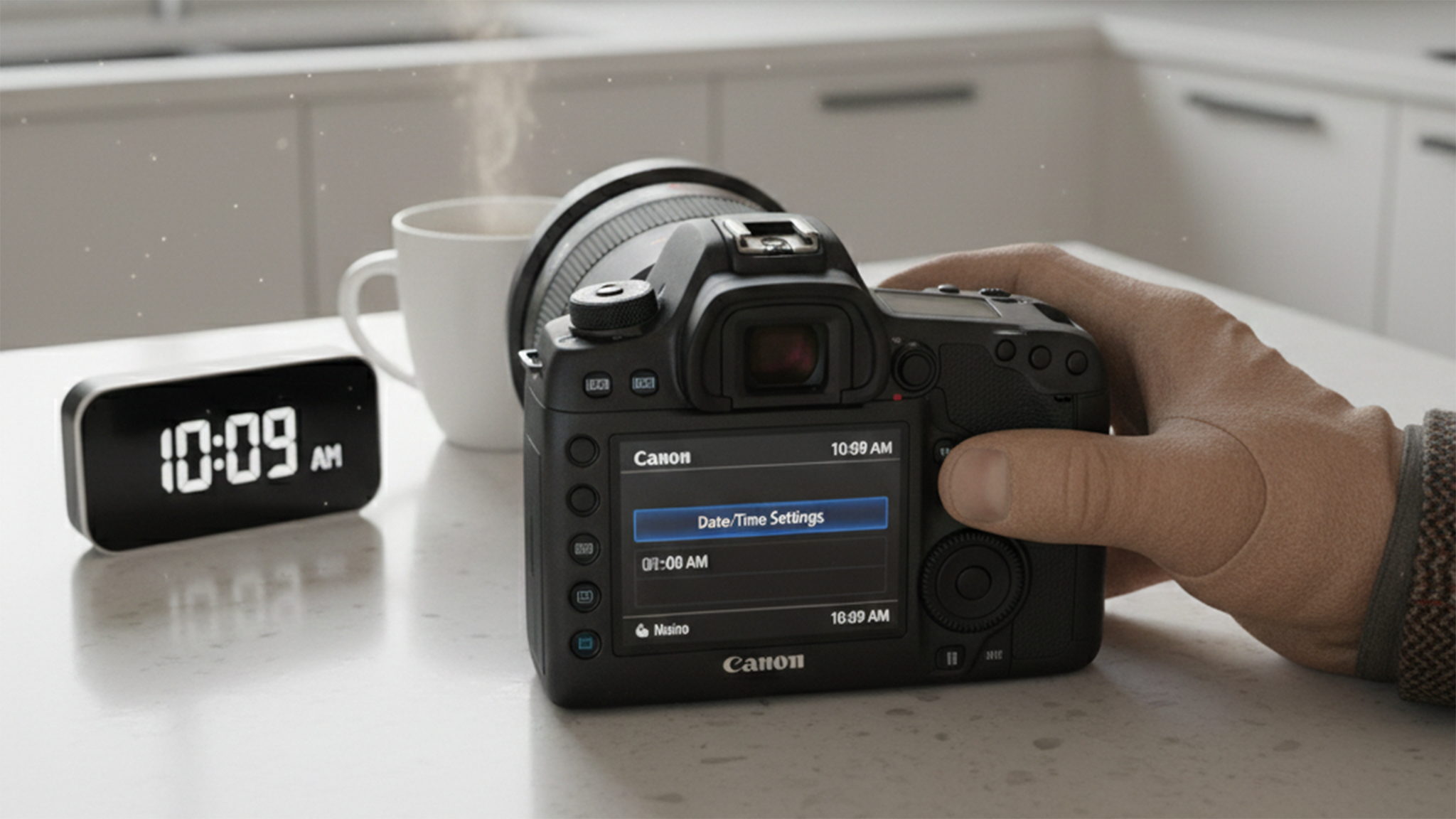
The Filesystem Date Problem
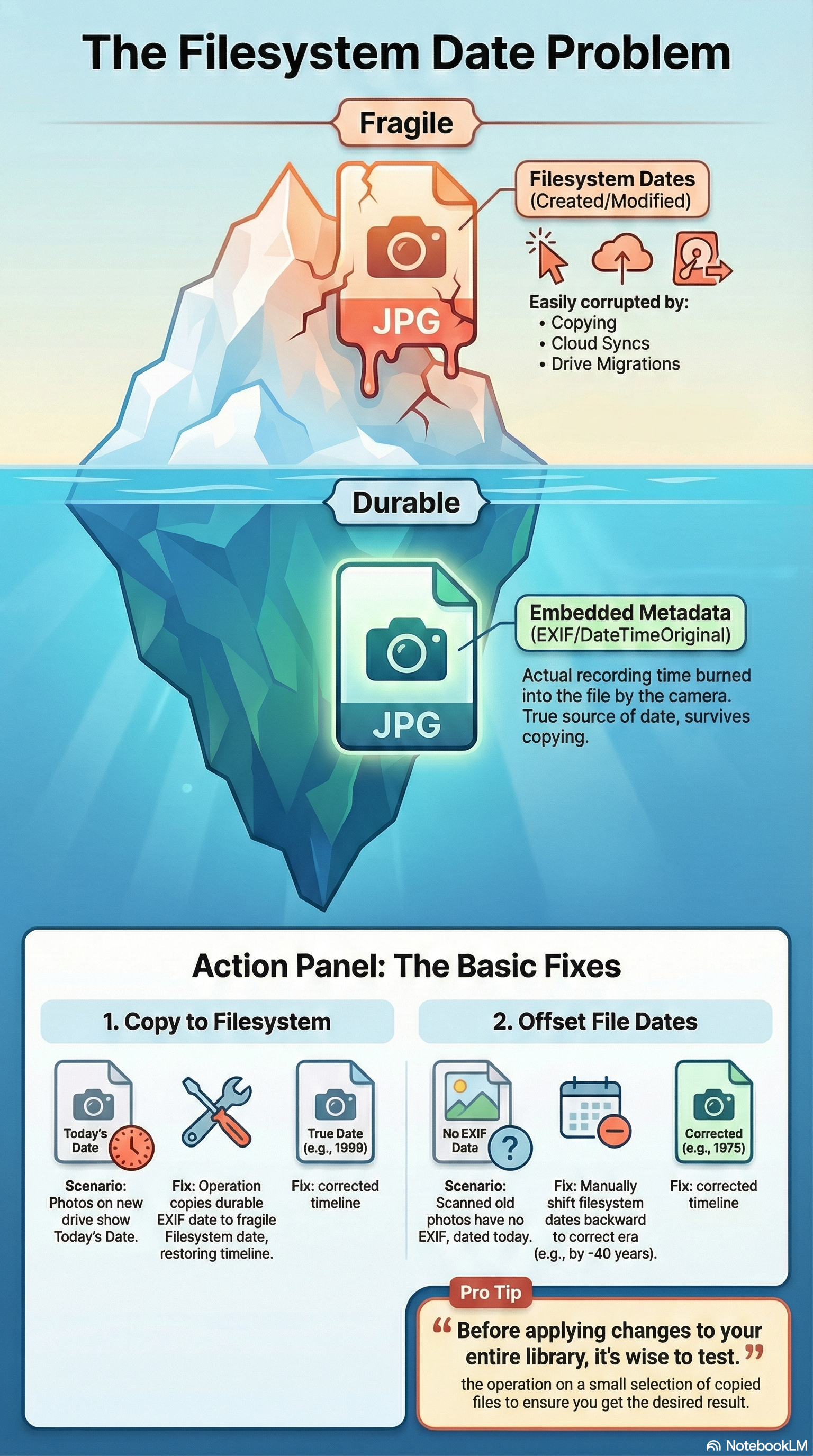
If you’ve managed digital photos for years, you’ve encountered this: copy a photo to a new drive, and suddenly the “Date Created” shows today instead of when the photo was taken. Cloud sync, platform migrations, backup operations—they all corrupt filesystem dates.
Your photo timeline becomes chaos. That vacation from 2019? Finder shows 2023.
The traditional fix: Copy the EXIF date (what the camera recorded) back to the filesystem. This works great—when your EXIF dates are correct.
But what if they’re not?
What You’ll Learn
This guide covers the foundational date operations every photographer needs:
- Copy to Filesystem — Restore corrupted filesystem dates from EXIF
- Offset File Dates — Shift filesystem dates by a fixed amount
These are the building blocks. Master these, and you’ll handle 80% of date problems.
Operation 1: Copy to Filesystem
The scenario: You copied 500 photos to a new external drive. Finder now shows today’s date for everything, destroying your timeline.
The solution: Copy the embedded EXIF date to the filesystem.
How It Works
Every photo stores a timestamp called DateTimeOriginal in its EXIF metadata—this is what the camera recorded when you pressed the shutter. Copy to Filesystem takes this date and writes it to the filesystem’s creation or modification date.
Options
| Target | What It Does |
|---|---|
| File Modified | Sets modification date to EXIF DateTimeOriginal |
| File Created | Sets creation date to EXIF DateTimeOriginal |
| Both | Sets both filesystem dates simultaneously |
When to Use
- After copying photos between drives
- After downloading from cloud storage
- After migrating from Windows to macOS (or vice versa)
- After restoring from backup
- Any time Finder shows wrong dates but your photos still have correct EXIF
Step-by-Step
- Select your photos in MetaScope
- Open Batch Processing (⌘⇧B)
- Go to the Date Operations tab
- Choose Copy to Filesystem
- Select target: File Modified, File Created, or Both
- Click Apply
Your Finder timeline is restored.
Operation 2: Offset File Dates
The scenario: You scanned 200 family photos. The scanner wrote today’s date to every file. You know these are from the 1980s, roughly 40 years ago.
The solution: Shift all filesystem dates backward by 40 years.
How It Works
Offset File Dates adds or subtracts a fixed time amount from filesystem timestamps. Set -40 years, and every date moves backward by exactly that amount.
Use Cases
- Scanned photos with scanner’s date instead of actual date
- Photos from a camera with dead battery (dates reset to 2000-01-01)
- Bulk adjustments when you know the exact offset
- Quick corrections when EXIF is missing
What It Doesn’t Do
This operation only touches filesystem dates. The embedded metadata (EXIF, XMP, IPTC) remains unchanged. This is intentional—sometimes you want to fix the filesystem without touching the camera’s original recording.
Step-by-Step
- Select photos needing correction
- Open Batch Processing (⌘⇧B)
- Go to the Date Operations tab
- Choose Offset File Dates
- Set the offset (e.g.,
-14400 daysfor ~40 years, or use the time picker) - Click Apply
Real-World Scenarios
Scenario 1: The Drive Migration
You consolidated three old hard drives onto a new SSD. Half your photos now show today’s date.
Solution:
- Select all affected photos
- Choose Copy to Filesystem → Both
- Apply
The filesystem dates now match the original capture times stored in EXIF.
Scenario 2: The Family Archive
You scanned 300 photos from family albums. The scans are organized into decade folders (1970s, 1980s, 1990s), but every file has today’s date.
Solution:
- Select the 1970s folder
- Choose Offset File Dates →
-50 years(approximate) - Apply
- Repeat for each decade folder with appropriate offsets
The files now have approximate dates matching their era. Later, you can refine individual photos with specific dates if known.
Scenario 3: The Cloud Sync
Your photos synced to iCloud and back. Now the creation dates are scrambled.
Solution:
- Select affected photos
- Choose Copy to Filesystem → File Created
- Apply
EXIF dates weren’t affected by the sync—only filesystem dates. Copying them back restores order.
Key Concepts
Filesystem vs. Metadata Dates
Your computer tracks two types of dates:
| Type | Stored In | Used By |
|---|---|---|
| Filesystem | File attributes | Finder, Explorer, file managers |
| Metadata | Inside the file (EXIF, XMP, IPTC) | Photo apps, DAMs, search |
When these disagree, confusion ensues. Finder shows one date. Photos app shows another. Lightroom shows a third.
The operations in this guide fix filesystem dates. Part 2 covers fixing metadata dates.
Why Copy to Filesystem Works
When a camera takes a photo, it records the moment in EXIF metadata inside the image file. This survives copying, syncing, and backup—it’s embedded in the file itself.
Filesystem dates are external—they’re file system attributes that can be easily corrupted by normal file operations.
Copy to Filesystem reads the reliable internal date and writes it to the external attribute. Problem solved.
When Offset Is Better
Sometimes there’s no EXIF date to copy from:
- Scanned photos (scanner doesn’t know when photo was taken)
- Screenshots (no EXIF)
- Older digital photos with corrupted metadata
- Files converted between formats
In these cases, you need Offset—a manual correction when automatic copying isn’t possible.
Safety Tips
-
Work on copies first: If you’re nervous about a large batch, test on a copy of a few files first.
-
Check your EXIF: Before running Copy to Filesystem, spot-check a few photos to ensure their EXIF dates are correct. If the EXIF is wrong, you’ll be copying wrong dates.
-
Note the skip count: Files without EXIF dates are skipped, not failed. High skip counts might mean you need Offset instead.
-
Preview results: MetaScope shows a preview before applying. Review it.
What’s Next
These basics handle filesystem corruption. But what if the embedded EXIF dates themselves are wrong?
Part 2: Master Your Metadata Dates covers:
- Offset Metadata Dates (fix EXIF/XMP/IPTC directly)
- Offset All Dates (fix everything at once)
- Sync All Dates (make all standards agree)
When your camera’s timezone was wrong during that vacation, the corruption isn’t just in the filesystem—it’s burned into the EXIF. That’s where Part 2 comes in.
MetaScope’s date operations work with professional photo libraries of any size. Pause and resume support means you can process 100,000+ files across multiple sessions.