Master Your Metadata Dates
Fix embedded metadata timestamps directly. Learn to offset EXIF/XMP/IPTC dates, synchronize all date standards, and resolve timezone errors.

The Hidden Problem
Part 1 solved filesystem date corruption—the dates Finder uses for sorting. But there’s a deeper problem most tools ignore: your embedded metadata dates.
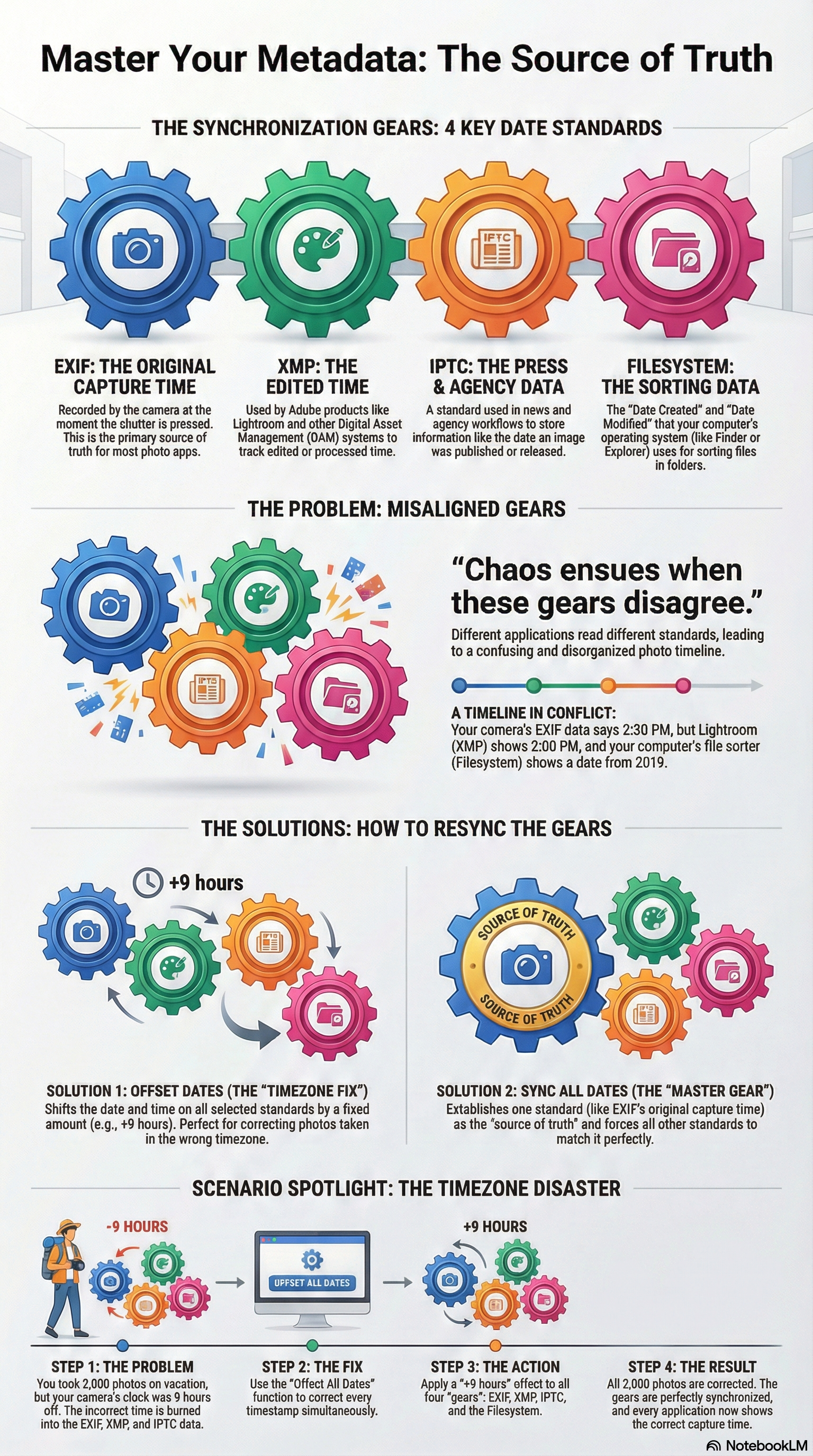
Every photo stores dates in multiple places:
- EXIF (DateTimeOriginal, CreateDate, ModifyDate)
- XMP (DateCreated, ModifyDate)
- IPTC (DateCreated, TimeCreated)
- Filesystem (Created, Modified)
When your camera’s timezone was set wrong during that two-week vacation, the corruption isn’t just in the filesystem. It’s burned into the EXIF data. Copying EXIF to filesystem—the standard fix—just spreads the wrong time everywhere.
You need to fix the source, not just the symptoms.
What You’ll Learn
This guide covers the core metadata date operations:
- Copy to Metadata — Spread EXIF dates to XMP and IPTC
- Offset Metadata Dates — Fix embedded timestamps directly
- Offset All Dates — Fix everything in one operation
- Sync All Dates — Make all standards agree
These are the operations that fix the actual capture timestamps in your files.
Understanding Date Standards
Why do photos have so many date fields? Because different systems read different standards:
| Standard | Read By | Best For |
|---|---|---|
| EXIF | Most photo apps, cameras | Original capture time |
| XMP | Adobe products, DAMs | Edited/processed time |
| IPTC | News/agency workflows | Published/released time |
| Filesystem | Operating system, file managers | Sorting in Finder/Explorer |
When these disagree, chaos ensues. Your camera app shows one time. Finder shows another. Lightroom shows a third.
The operations in this guide fix that.
Operation 1: Copy to Metadata
The scenario: Your camera recorded the correct EXIF date. But after years of editing in different apps, XMP and IPTC dates are inconsistent or missing.
The solution: Copy EXIF DateTimeOriginal to XMP and IPTC standards.
How It Works
Copy to Metadata takes the authoritative EXIF timestamp and writes it to:
- XMP: DateCreated, ModifyDate
- IPTC: DateCreated, TimeCreated
When to Use
- After importing photos that only have EXIF (no XMP/IPTC)
- To standardize metadata before export
- When Lightroom and Photos show different times
- To ensure all applications see the same date
What It Preserves
Filesystem dates remain unchanged. This operation only touches embedded metadata.
Step-by-Step
- Select photos
- Open Batch Processing (⌘⇧B)
- Go to the Date Operations tab
- Choose Copy to Metadata
- Select targets: XMP, IPTC, or both
- Click Apply
Now every metadata standard agrees.
Operation 2: Offset Metadata Dates
The game-changer.
The scenario: You shot 847 vacation photos in Tokyo. Your camera was still set to Pacific Time. Every photo is 17 hours off—in the actual EXIF data.
The solution: Apply a time offset directly to the embedded metadata.
How It Works
Offset Metadata Dates shifts EXIF, XMP, and IPTC timestamps by a fixed amount. Set +17 hours, and every embedded date moves forward.
Why This Matters
Traditional tools only fix filesystem dates. But the EXIF timestamp is what most photo apps read. If that’s wrong, the problem follows your photos everywhere.
Offset Metadata Dates fixes the source.
Options
| Target | What It Shifts |
|---|---|
| EXIF | DateTimeOriginal, CreateDate, ModifyDate |
| XMP | DateCreated, ModifyDate |
| IPTC | DateCreated, TimeCreated |
Choose which standards to shift. Usually, you’ll want all of them.
When to Use
- Camera timezone was wrong during travel
- Camera clock drifted significantly
- Multiple cameras with different clock settings
- Any time the embedded dates are consistently off by a known amount
Step-by-Step
- Calculate the offset (e.g., Tokyo is UTC+9, Pacific is UTC-8, difference is 17 hours)
- Select affected photos
- Open Batch Processing (⌘⇧B)
- Choose Offset Metadata Dates
- Set the offset:
+17 hours - Select targets: EXIF, XMP, IPTC (typically all three)
- Click Apply
Now your embedded dates are correct. When you copy EXIF to filesystem, you’re copying the right times.
Operation 3: Offset All Dates
Why run two operations when one will do?
The scenario: Every date is wrong—filesystem and metadata. This happens when:
- You corrected metadata but forgot filesystem
- You’re fixing a complete timezone disaster
- You want everything consistent in one pass
The solution: Offset All Dates combines filesystem and metadata offsets.
How It Works
Set one offset, choose all your targets (filesystem + EXIF + XMP + IPTC), and everything shifts together.
When to Use
- Complete timezone corrections
- Bulk time shifts across your entire capture stack
- When you want guaranteed consistency
Step-by-Step
- Select photos
- Open Batch Processing (⌘⇧B)
- Choose Offset All Dates
- Set the offset
- Select all targets
- Click Apply
One operation, complete correction.
Operation 4: Sync All Dates
The consistency enforcer.
The scenario: Your dates are scattered. EXIF says 2:30 PM. XMP says 2:00 PM (rounded during some export). IPTC has no time at all. Filesystem says 2019 because of a bad copy operation.
The solution: Pick a source of truth and propagate it everywhere.
How It Works
Sync All Dates reads from one authoritative source and writes to all other standards.
Source Options
| Source | When to Use |
|---|---|
| EXIF DateTimeOriginal | Camera’s original recording (most common) |
| EXIF CreateDate | When DateTimeOriginal is missing |
| EXIF ModifyDate | For edited images |
| XMP DateCreated | If XMP is more reliable (Adobe workflow) |
| Filesystem Created | When metadata is missing |
Target Options
- EXIF (DateTimeOriginal, CreateDate, ModifyDate)
- XMP (DateCreated, ModifyDate)
- IPTC (DateCreated, TimeCreated)
- Filesystem (optional)
When to Use
- After discovering date inconsistencies during editing
- Post-migration from other applications
- Before archiving to ensure consistency
- When different apps show different times for the same photo
Step-by-Step
- Select photos
- Open Batch Processing (⌘⇧B)
- Choose Sync All Dates
- Select source: EXIF DateTimeOriginal (typically)
- Select targets: All standards you want synchronized
- Click Apply
Every standard now agrees. No more mismatches.
Real-World Scenarios
Scenario 1: The Timezone Disaster
You shot 2,000 photos over a two-week European vacation. Your camera was still set to Pacific Time. Every photo is 9 hours off—everywhere.
Old approach: Copy EXIF → Filesystem. Now your filesystem dates are also wrong.
New approach:
- Select all 2,000 photos
- Choose Offset All Dates
- Set
+9 hours - Target: EXIF + XMP + IPTC + Filesystem
- Apply
Every date, everywhere, corrected in under a minute.
Scenario 2: The Inconsistent Archive
You imported photos from multiple sources over the years. Some have EXIF dates. Some have XMP only (from Lightroom exports). Some have IPTC from agency workflows. The dates don’t match across standards.
Solution:
- Select your archive
- Choose Sync All Dates
- Source: EXIF DateTimeOriginal
- Targets: XMP + IPTC + Filesystem
- Apply
Now EXIF is the master, and all other standards match.
Scenario 3: The Migrated Archive
After years of using different photo apps—iPhoto, Aperture, Lightroom, Capture One—your metadata is a mess. EXIF dates say 2015. XMP dates say 2018 (when you re-exported). IPTC is blank. Filesystem says 2023 (when you migrated).
Solution:
- Select your archive
- First: Sync All Dates (EXIF → XMP + IPTC) to standardize metadata
- Then: Copy to Filesystem to fix file system dates
- Apply
Your timeline is now consistent across all applications.
The Order of Operations
When facing complex date problems, follow this sequence:
- Fix the source first: If EXIF is wrong, use Offset Metadata Dates
- Then sync standards: Use Sync All Dates to propagate the corrected date
- Finally fix filesystem: Use Copy to Filesystem or include filesystem in sync
This ensures you’re not spreading wrong dates around.
Pro Tips
-
Offset Metadata before copying to Filesystem: Fix the source of truth first, then propagate.
-
Calculate timezone offsets carefully: UTC+9 to UTC-8 is 17 hours, not 1 hour. Sign matters.
-
Check the preview: MetaScope shows what will change before you apply. Review it.
-
Use Sync for one-time cleanup: After any corrections, run Sync All Dates to ensure future consistency.
-
Target strategically: You don’t always need all standards. If you only use Lightroom, maybe just EXIF + XMP is sufficient.
What’s Next
These operations handle timezone errors and inconsistency. But what about:
- Photos with no dates at all?
- Dates embedded in filenames?
- Privacy scrubbing?
- Burst sequences with gaps?
Part 3: Advanced Date Operations covers:
- Set Absolute Date
- Parse from Filename
- Auto-Fix Inconsistencies
- Remove Date Metadata
- Interpolate Dates
The power tools for complex date problems.
MetaScope writes dates using ExifTool for maximum compatibility. All operations support pause/resume for large libraries.