Stop Copying and Pasting: Automate Your Metadata with Transformation Rules
MetaScope 1.2.2 introduces Transformation Rules — a powerful automation engine for batch metadata operations. Define once, apply anywhere with live preview.

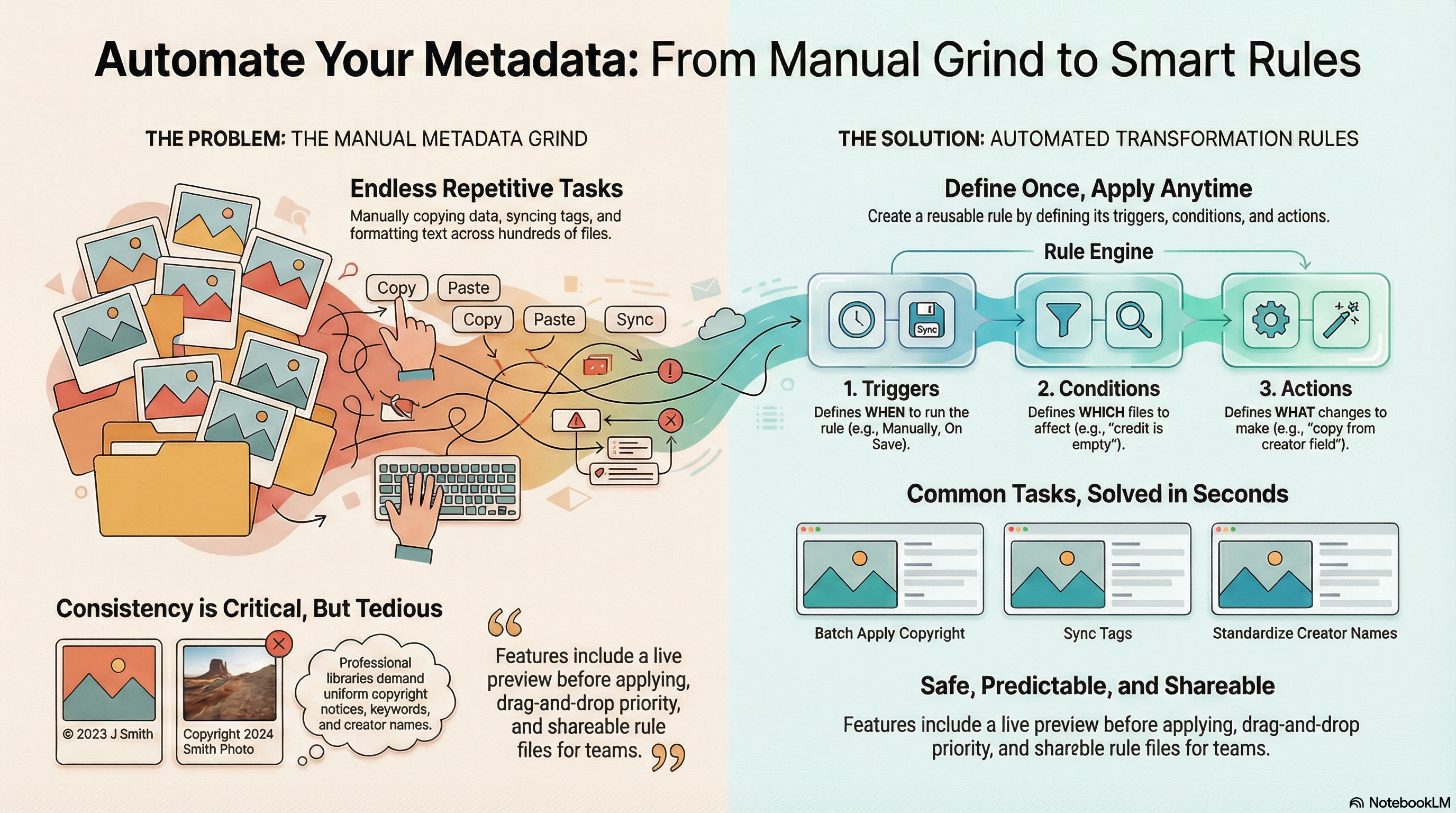
Every photographer knows the drill: you’ve got 500 wedding photos and need to copy the couple’s names to the credit line on every single one. Or maybe you’re syncing Finder color tags to IPTC keywords manually, one image at a time. Or standardizing creator names to title case across thousands of files.
There has to be a better way.
The Problem: Repetitive Metadata Tasks
Professional photo libraries demand consistency. Copyright notices need to match your credit lines. Keywords should sync with your Finder tags. Text formatting must be uniform across all fields.
But most metadata tools force you to do this work manually, image by image, field by field. What starts as a 5-minute task quickly becomes an hour-long grind when you’re dealing with hundreds of files.
The real problem? These aren’t creative decisions—they’re mechanical transformations that follow simple rules. If you can describe the pattern (“copy creator to credit when credit is empty”), a computer should be able to do it for you.
The Solution: Transformation Rules Engine
MetaScope 1.2.2 introduces Transformation Rules: a powerful batch processing system that lets you define metadata transformations once, then apply them on-demand across your entire selection.
Think of it like saved metadata operations. You define the conditions (“when copyright is empty”) and the actions (“set copyright to this template”), save them as a reusable rule, then apply to any selection whenever you need.
Define Once, Apply Anytime
Create transformation rules with three components:
-
Triggers: When should this rule be available?
- Manual (v1.2.2): Select files and apply rules on-demand with preview
- On Save (coming v1.2.3): Automatic application when metadata is saved
- On Open (coming v1.2.3): Automatic application when files are loaded
-
Conditions: What files should this affect?
- Field comparisons (equals, contains, starts with, regex)
- Empty/non-empty checks
- Combine multiple conditions with ALL/ANY logic
-
Actions: What changes should happen?
- Copy field values
- Set static text or templates
- Transform text (uppercase, lowercase, title case)
- Sync Finder tags to keywords
- Replace patterns with regex
- Clear sensitive fields
Real-World Examples
Batch Apply Copyright
Trigger: Manual
Condition: Copyright is empty
Action: Set copyright to "© 2026 Your Studio Name"
Select your files, apply the rule, and every photo gets proper copyright attribution—with preview before committing.
Sync Finder Tags to Keywords
Trigger: Manual
Condition: (none)
Action: Sync Finder tags to IPTC Keywords
Your file organization and metadata stay in sync. Select the files you want to sync and apply.
Standardize Creator Names
Trigger: Manual
Condition: Creator is not empty
Action: Transform text to Title Case
Convert “JOHN SMITH” or “john smith” to “John Smith” across your entire selection in seconds.
Generate Credit Lines
Trigger: Manual
Condition: Credit is empty AND Creator is not empty
Action: Copy Creator to Credit
Fill credit lines from creator names across hundreds of files at once.
Clear Sensitive Location Data
Trigger: Manual
Condition: GPS coordinates exist
Action: Clear GPS fields
Batch-remove location metadata before sharing photos online.
Eleven Action Types
MetaScope’s transformation rules support eleven action types for complete metadata automation:
| Action Type | What It Does | Example Use |
|---|---|---|
| Copy Field | Copy value from one field to another | Creator → Credit |
| Set Field | Set field to static text or template | Copyright notice |
| Clear Field | Remove field content | Privacy scrubbing |
| Uppercase | Transform text to uppercase | Standardize acronyms |
| Lowercase | Transform text to lowercase | Normalize for web |
| Title Case | Transform to Title Case | Fix creator names |
| Sentence Case | Transform to Sentence case | Clean descriptions |
| Replace Text | Find and replace (with regex) | Batch corrections |
| Replace Regex | Pattern-based replacement | Complex transformations |
| Sync Tags to Keywords | Finder tags → IPTC keywords | Organization sync |
| Sync Keywords to Tags | IPTC keywords → Finder tags | Metadata sync |
Eleven Comparison Operators
Define precisely which files your rules affect:
| Operator | What It Matches | Example |
|---|---|---|
| Equals | Exact match | Title equals “Untitled” |
| Not Equals | Does not equal | Creator not “Unknown” |
| Contains | Contains substring | Description contains “wedding” |
| Not Contains | Doesn’t contain | Title not “test” |
| Starts With | Begins with | Filename starts “DSC_“ |
| Ends With | Ends with | Title ends ”.” |
| Regex Match | Pattern match | Filename matches \d{4} |
| Is Empty | Field is empty | Copyright is empty |
| Is Not Empty | Field has value | Creator exists |
| Greater Than | Numeric/date greater | ISO greater than 800 |
| Less Than | Numeric/date less | Shutter less than 1/60 |
Combine conditions with ALL (must match all) or ANY (match any) logic for complex filtering.
Preview Before You Apply
Every transformation rule includes a live preview showing exactly what will change. Color-coded diffs highlight modified fields so you can verify the results before committing.
No surprises. No accidents. Just predictable, reliable automation.
Priority-Based Execution
When multiple rules could apply to the same file, MetaScope processes them in priority order. Drag rules to reorder them, creating complex workflows that chain transformations together.
Example workflow:
- Priority 1: Copy creator to credit
- Priority 2: Transform credit to title case
- Priority 3: Set copyright based on credit
Each rule builds on the previous one, executing in the order you define.
Save & Share Rules
Transformation rules save as portable .msrule files you can import and export. Create a standard set of rules for your studio, then share them with your team to ensure everyone follows the same metadata conventions.
Exporting Rules
- Open Transformation Rules panel
- Select the rule(s) to export
- Click Export
- Save the
.msrulefile
Importing Rules
- Click Import in the Transformation Rules panel
- Select the
.msrulefile - Rules are added to your collection
Getting Started
- Open Transformation Rules: Choose “Manage Transformation Rules” from the Tools menu
- Create Your First Rule: Click the + button and give your rule a name
- Set the Trigger: Choose when this rule should run
- Add Conditions (optional): Specify which files to affect
- Define Actions: Choose what transformations to apply
- Preview & Enable: Review the preview, then enable the rule
Start simple with one or two rules, then expand your automation as you discover patterns in your workflow.
Pro Tips
- Start with simple rules: Master single-action rules before building complex multi-condition workflows
- Use descriptive names: “Batch Copyright 2026” is clearer than “Rule 1”
- Combine conditions wisely: Use “Credit is empty AND Creator is not empty” to avoid overwriting existing data
- Export your rules: Back up your rule library regularly by exporting to
.msrulefiles - Priority matters: When rules interact, execution order determines the final result
What’s Coming in v1.2.3
The Transformation Rules foundation in v1.2.2 sets the stage for automatic triggers:
- On Open: Rules that apply automatically when files are loaded
- On Save: Rules that run when you save metadata changes
- On Field Change: Rules that trigger when specific fields are modified
These automatic triggers will integrate seamlessly with the rules you create today.
Start Automating Today
Stop copying and pasting metadata by hand. Define your transformation rules once, apply them whenever you need, and reclaim hours of your time for what matters: creating great photography.
Transformation Rules is available in MetaScope 1.2.2 as a Pro feature. Try it today and experience the power of metadata automation.
Ready to automate your metadata workflow? Get MetaScope on the Mac App Store →