Video Dates & Timezone Mastery
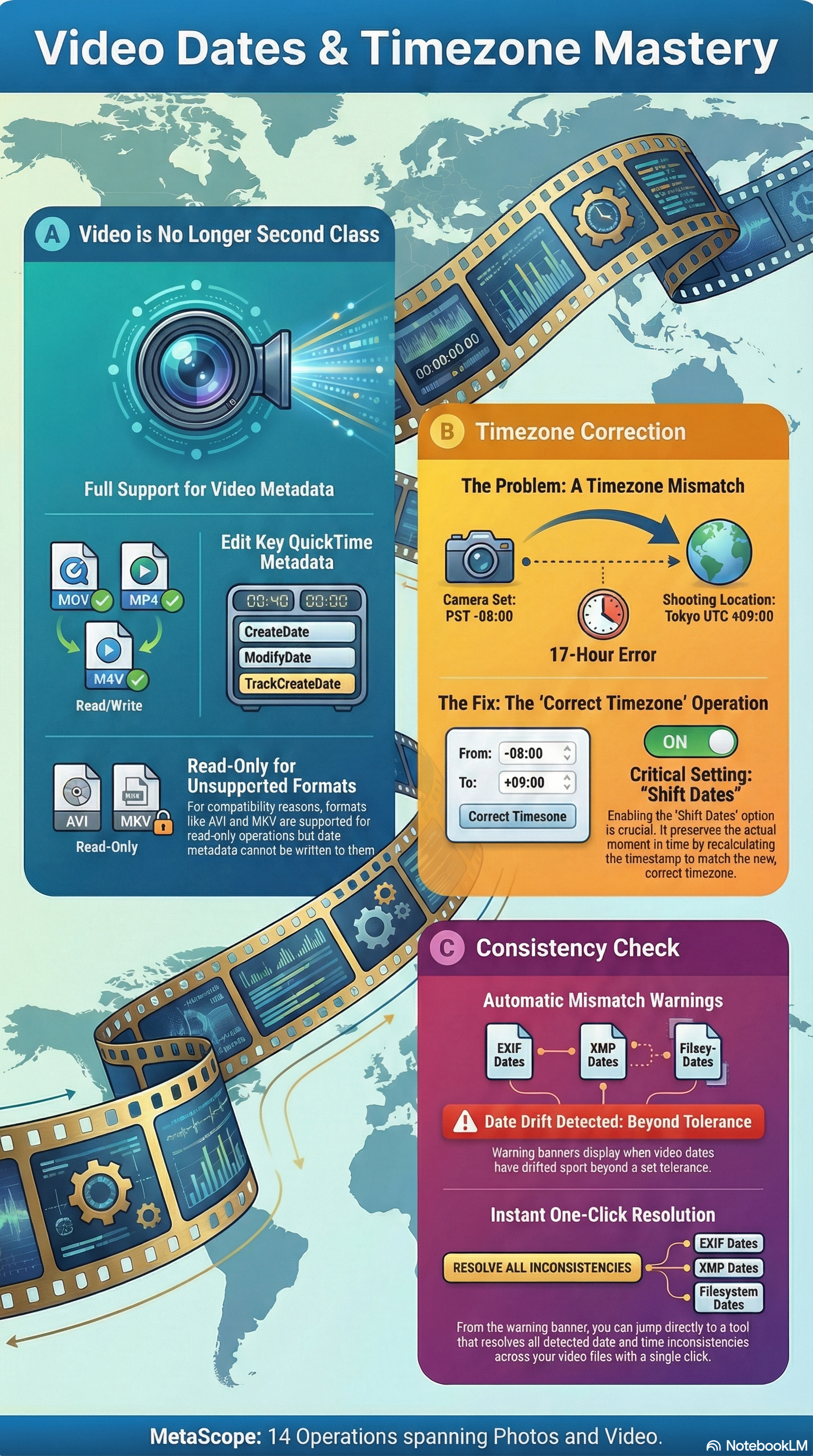
Full QuickTime metadata support for video files, timezone offset correction, and visual date inconsistency validation. The final piece of complete date management.

The Final Frontier
Parts 1-3 covered photos. But what about video?
Video files have historically been second-class citizens in metadata tools. The dates are stored differently (QuickTime atoms instead of EXIF), the format support is inconsistent, and most tools simply ignore them.
Not anymore.
This guide covers:
- Video Date Editing — Full QuickTime metadata support
- Timezone Correction — Fix offset errors properly
- Date Consistency Validation — Visual mismatch detection
Video Date Editing
QuickTime Metadata
Video files (MOV, MP4, M4V) store dates in QuickTime metadata atoms:
| Field | Purpose |
|---|---|
| CreateDate | When the video was originally recorded |
| ModifyDate | When the video was last edited |
| MediaCreateDate | Track-level creation timestamp |
| MediaModifyDate | Track-level modification timestamp |
| TrackCreateDate | Individual track timestamps |
| TrackModifyDate | Individual track modification |
All Operations Work on Video
Every date operation from Parts 1-3 works on video files:
| Operation | Video Support |
|---|---|
| Copy to Filesystem | ✓ |
| Copy to Metadata | ✓ (QuickTime standards) |
| Offset File Dates | ✓ |
| Offset Metadata Dates | ✓ |
| Offset All Dates | ✓ |
| Sync All Dates | ✓ |
| Set Absolute Date | ✓ |
| Parse from Filename | ✓ (MOV_/VID_ patterns) |
| Auto-Fix Inconsistencies | ✓ |
| Remove Date Metadata | ✓ |
| Interpolate Dates | ✓ |
Supported Formats
| Format | Write Support |
|---|---|
| MOV | ✓ Full support |
| MP4 | ✓ Full support |
| M4V | ✓ Full support |
| AVI | ✗ Read-only (no QuickTime atoms) |
| MKV | ✗ Read-only (container limitation) |
Non-writable formats are skipped, not failed. You can select mixed photo/video folders without errors.
Video Filename Patterns
Parse from Filename recognizes video naming conventions:
| Pattern | Example |
|---|---|
| MOV_YYYYMMDD_HHMMSS | MOV_20250521_143022.mp4 |
| VID_YYYYMMDD_HHMMSS | VID_20250521_143022.mp4 |
Timezone Correction
The Problem
Dates without timezone context are dates without meaning.
Your camera recorded “2:00 PM” but didn’t know you were in Tokyo instead of London. That’s a 9-hour error—but it’s not visible because most tools show the time without the timezone.
Timezone Display
MetaScope now shows timezone information alongside timestamps:
DateTimeOriginal: 2025-05-21 14:30:22 +09:00
                                      ^^^^^^
                                      Timezone offset
When you see +09:00, that’s Tokyo time (UTC+9). When you see Z, that’s UTC. When there’s no offset, the timezone is unknown.
Write Timezone Offset
Set the timezone offset in EXIF metadata:
| Field | Purpose |
|---|---|
| OffsetTime | General timezone offset |
| OffsetTimeOriginal | Original capture timezone |
| OffsetTimeDigitized | Digitization timezone |
Correct Timezone
The power operation for timezone errors.
Your camera was set to Pacific time (-08:00) but you were in Tokyo (+09:00). The timestamps are recorded as if you were in California, 17 hours off.
Correct Timezone does two things:
- Updates the offset fields to the correct timezone
- Optionally shifts the date values to match
Shift Dates Option
| Option | What Happens |
|---|---|
| Shift dates ON | Dates are recalculated to the new timezone |
| Shift dates OFF | Only offset fields change, date values stay the same |
Example with shift ON:
- Original:
2025-05-21 14:30:22 -08:00(Pacific) - Corrected:
2025-05-22 07:30:22 +09:00(Tokyo) - The absolute moment in time is preserved
Example with shift OFF:
- Original:
2025-05-21 14:30:22 -08:00 - Corrected:
2025-05-21 14:30:22 +09:00 - The local time stays the same, offset changes
Usually you want shift ON to preserve the actual moment the photo was taken.
Common Presets
MetaScope provides quick presets for common corrections:
| Preset | From | To |
|---|---|---|
| UTC | Any | +00:00 |
| EST→UTC | -05:00 | +00:00 |
| PST→UTC | -08:00 | +00:00 |
| CET→UTC | +01:00 | +00:00 |
Step-by-Step: Timezone Correction
- Select photos taken with wrong timezone
- Open Batch Processing (⌘⇧B)
- Go to Date Operations → Advanced section
- Choose Correct Timezone
- Set “From” timezone:
-08:00(where camera thought you were) - Set “To” timezone:
+09:00(where you actually were) - Enable “Shift dates with timezone”
- Click Apply
The dates now reflect the correct moment in time.
Date Consistency Validation
Automatic Detection
MetaScope now automatically detects when dates don’t match across standards:
- EXIF says 2:30 PM
- XMP says 2:00 PM
- IPTC is blank
- Filesystem says different day
You’ll see a warning banner with expandable details showing exactly which standards disagree.
Configurable Tolerance
In Settings → General → Date Consistency, configure:
| Setting | Purpose |
|---|---|
| Show warnings | Toggle inconsistency alerts on/off |
| Tolerance | How much drift before warning (default: 60 seconds) |
Burst sequences might have 1-second intervals—that’s fine. But 30-minute differences indicate a problem.
Per-File Preview
In batch operations, the Date Inconsistency Preview shows:
- Which files have mismatches
- What each standard currently shows
- Severity of the inconsistency
Review before applying fixes.
One-Click Resolution
From the inconsistency banner, jump directly to Auto-Fix Inconsistencies with your files pre-selected.
Real-World Scenarios
Scenario 1: The Travel Video
You shot video on vacation. Camera timezone was wrong. Now all your clips are timestamped incorrectly.
Solution:
- Select all video files
- Choose Correct Timezone
- From:
-05:00(EST, where camera was set) - To:
+01:00(CET, where you traveled) - Enable shift dates
- Apply
All video timestamps now reflect when they were actually recorded.
Scenario 2: The Mixed Media Archive
Folder with 500 photos and 50 videos. Some dates are wrong, some are missing, filesystem is chaos.
Solution (multi-step):
- Auto-Fix Inconsistencies — Resolve mismatches across all files
- Parse from Filename — Extract dates from MOV_/IMG_ names for files without metadata
- Copy to Filesystem — Restore filesystem dates
Works on photos and videos together.
Scenario 3: The UTC Normalization
You want all your archive timestamps in UTC for consistent cross-timezone sorting.
Solution:
- Select all files
- Choose Correct Timezone
- From: (your local timezone)
- To:
Z(UTC) - Enable shift dates
- Apply
All timestamps are now UTC. Easy to compare across time zones.
Scenario 4: The Quick Audit
Before processing a folder, you want to know which files have date problems.
Solution:
- Select folder
- Open Batch Processing
- Look at the Date Inconsistency Preview
- Files with warnings need attention
- Decide: Auto-Fix, manual correction, or ignore
The Complete Workflow
For a comprehensive date cleanup of a mixed photo/video archive:
Step 1: Audit
- Open folder in batch processing
- Review Date Inconsistency Preview
- Note which files have issues
Step 2: Fix Timezone Issues
- Select files with wrong timezone
- Use Correct Timezone with shift
- Apply
Step 3: Resolve Inconsistencies
- Select remaining files with mismatches
- Use Auto-Fix Inconsistencies
- Strategy: Use EXIF Date
- Apply
Step 4: Recover Missing Dates
- Select files without dates
- Try Parse from Filename
- For remaining: Set Absolute Date or Interpolate
Step 5: Final Sync
- Select all files
- Use Sync All Dates
- Source: EXIF DateTimeOriginal
- Targets: All standards
- Apply
Your archive is now consistent.
Pro Tips
-
Always enable “Shift dates” for timezone correction unless you have a specific reason not to. This preserves the actual moment in time.
-
Check video format support: AVI and MKV can be read but not written. Use MOV/MP4 for full date management.
-
UTC is your friend: For large archives spanning multiple timezones, normalizing to UTC simplifies sorting and comparison.
-
Preview before applying: The inconsistency preview shows exactly what will change. Review it.
-
Configure tolerance for your workflow: Sports photographers with burst sequences need higher tolerance than portrait photographers.
Summary: The Complete Toolkit
Across all four parts, you now have 14 date operations:
| Category | Operations |
|---|---|
| Basic | Copy to Filesystem, Copy to Metadata, Offset File Dates |
| Intermediate | Offset Metadata Dates, Offset All Dates, Sync All Dates |
| Advanced | Set Absolute Date, Parse from Filename, Extract from Filename, Auto-Fix Inconsistencies, Remove Date Metadata, Interpolate Dates |
| Video & Timezone | Video Date Editing (all ops), Correct Timezone |
Plus:
- Pause/resume for large batches
- Restart persistence (survives app crashes)
- Date consistency validation
Your photo and video library, with dates fixed properly—at every level.
Series Conclusion
This four-part guide covered:
- Part 1: The Basics — Copy to Filesystem, Offset File Dates
- Part 2: Metadata Mastery — Copy to Metadata, Offset operations, Sync All Dates
- Part 3: Advanced Operations — Set Absolute, Parse/Extract from Filename, Auto-Fix, Remove, Interpolate
- Part 4: Video & Timezone — QuickTime support, Timezone correction, Consistency validation
From basic filesystem fixes to complex video timezone corrections, you now have the tools to manage any date problem.
MetaScope v1.2.2 introduces the most comprehensive date management system available: 14 operations spanning photos and video, full timezone support, and intelligent consistency validation. Available for macOS.