Introducing Stackable Batch Rename: Rename Files Your Way
MetaScope 1.2.2 introduces stackable batch rename with powerful rules that build on each other. Learn to create custom naming conventions with nine rule types, presets, and live preview.

Every photographer knows the pain: hundreds of files with cryptic names like DSC_0523.NEF, IMG_4872.CR3, or _MG_1234.ARW. You know what’s in those files, but good luck finding that sunset shot from last Tuesday without opening each one.
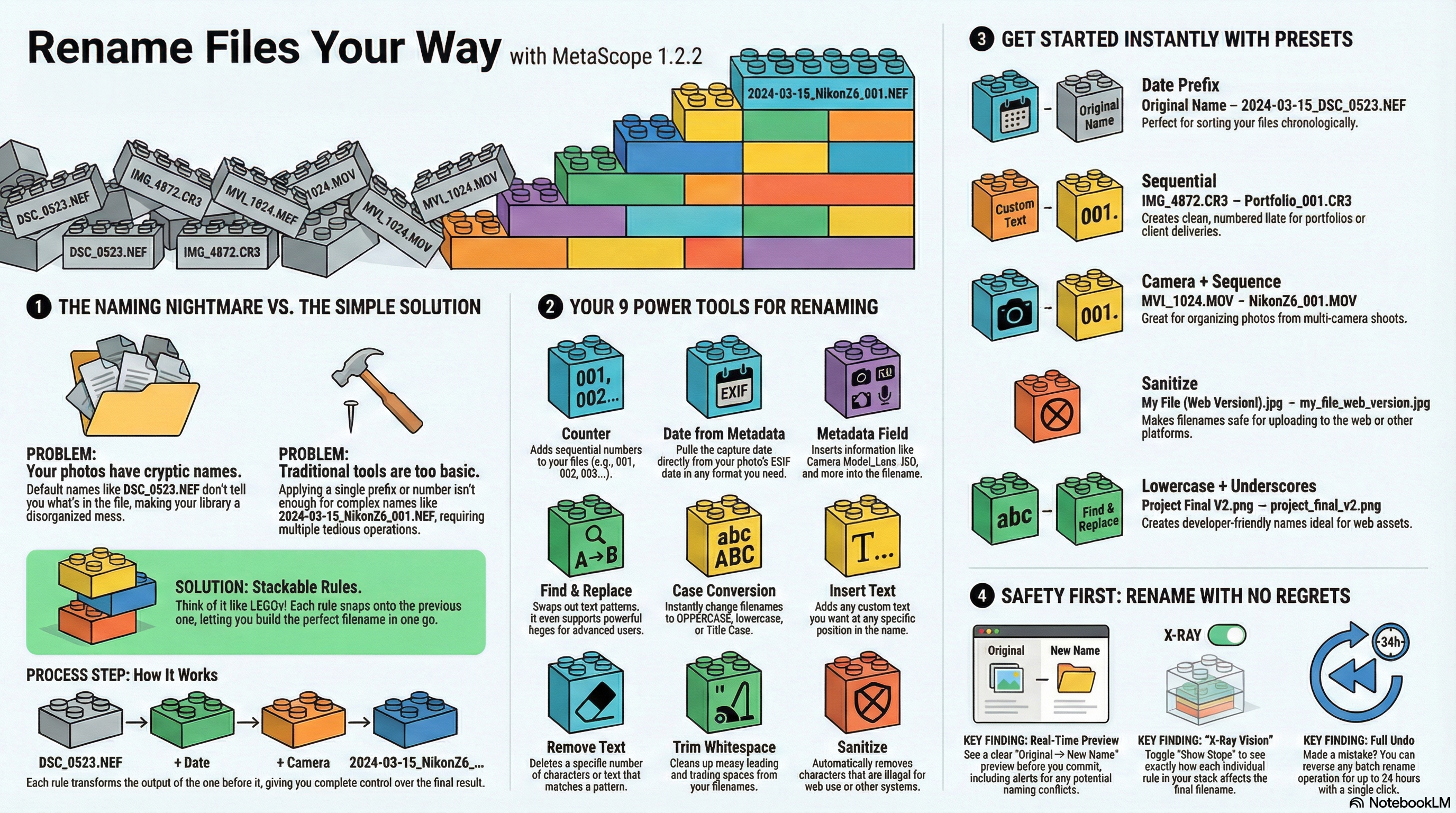
MetaScope 1.2.2 introduces Stackable Batch Rename — a powerful yet intuitive way to transform your file names using rules that build on each other. Think of it like building with LEGO blocks: each rule snaps onto the previous one, letting you construct exactly the naming convention you need.
The Problem with Traditional Rename Tools
Most batch rename tools give you a single transformation: add a prefix, replace text, or append a number. But real-world naming needs are rarely that simple.
Say you want your files named like 2024-03-15_NikonZ6_001.NEF. That requires:
- Extracting the capture date from EXIF
- Adding an underscore separator
- Pulling the camera model from metadata
- Adding another separator
- Appending a sequential counter
Traditional tools make you run five separate operations. With MetaScope’s stackable rules, you build this once and apply it instantly.
How Stackable Rules Work
The magic is in the stacking. Each rule takes the output of the previous rule and transforms it further:
Original:     DSC_0523
     ↓
Rule 1 (Date from EXIF):     2024-03-15
     ↓
Rule 2 (Insert "_"):         2024-03-15_
     ↓
Rule 3 (Camera Model):       2024-03-15_NIKON Z6
     ↓
Rule 4 (Insert "_"):         2024-03-15_NIKON Z6_
     ↓
Rule 5 (Counter):            2024-03-15_NIKON Z6_001
You see each step in the preview, so there are no surprises.
Nine Powerful Rule Types
MetaScope gives you nine rule types to combine:
| Rule Type | What It Does |
|---|---|
| Counter | Add sequential numbers (001, 002, 003…) |
| Date from Metadata | Pull capture date from EXIF in any format |
| Metadata Field | Insert camera model, lens, ISO, or other metadata |
| Find & Replace | Replace text patterns (supports regex) |
| Case Conversion | UPPERCASE, lowercase, Title Case, Sentence case |
| Insert Text | Add text at any position |
| Remove Text | Remove characters from start, end, or by pattern |
| Trim Whitespace | Clean up leading/trailing spaces |
| Sanitize | Remove illegal characters, replace spaces |
Mix and match these to create any naming convention you can imagine.
Built-In Presets to Get You Started
Not sure where to begin? MetaScope includes five presets for common workflows:
Date Prefix
Adds the EXIF capture date before your filename:
DSC_0523.NEF → 2024-03-15_DSC_0523.NEFPerfect for chronological sorting without losing the original name.
Sequential
Creates clean numbered sequences:
vacation_photo.jpg → Photo_0001.jpg
sunset_beach.jpg  → Photo_0002.jpg
Ideal for portfolios, client deliveries, or archive organization.
Camera + Sequence
Combines camera model with sequence numbers:
DSC_0523.NEF → NIKON Z6_0001.NEF
IMG_4872.CR3 → Canon EOS R5_0002.CR3
Great when you shoot with multiple cameras and want to see the source at a glance.
Sanitize
Cleans up problematic characters:
My Photo (final).jpg → My_Photo_final.jpgEssential before uploading to systems with filename restrictions.
Lowercase + Underscores
Normalizes for web and technical workflows:
My Summer VACATION.jpg → my_summer_vacation.jpgPerfect for web assets, code projects, or cross-platform compatibility.
Real-Time Preview: No Surprises
Before you commit to any rename, MetaScope shows you exactly what will happen. The preview panel displays:
- Original name → New name for every file
- Color coding for changes vs. unchanged files
- Step-by-step breakdown showing each rule’s effect
- Conflict detection when two files would get the same name
Toggle “Show Steps” to see exactly how your rule stack transforms each filename. It’s like having X-ray vision for your rename operation.
What About Mistakes?
We’ve all been there: you hit rename and immediately realize something’s wrong. MetaScope has your back with full undo support. Every rename operation is recorded for 24 hours, letting you reverse even large batch operations with a single click.
The undo system tracks the exact before/after for each file, so you can safely experiment knowing you can always go back.
Getting Started
Try the built-in presets first:
- Select some files in MetaScope
- Open Batch Processing (⌘⇧B)
- Go to the Batch Rename tab
- Choose a preset from the dropdown
- See the preview update instantly
- Click Apply when ready
Once you’re comfortable, try adding rules to the stack. Add a date prefix to the Sequential preset. Change the case conversion. Each rule builds on the previous one.
Coming Up in Part 2
In the next post, we’ll dive deeper into advanced techniques:
- Creating your own custom presets
- Using regex patterns for surgical find/replace
- Metadata extraction tricks (dates, camera info, GPS)
- Handling naming conflicts intelligently
- Real-world workflow examples from portrait, landscape, and event photography
Read Part 2: Advanced Techniques and Workflows →
Stackable Batch Rename is available in MetaScope 1.2.2 for macOS. Download from the Mac App Store or update your existing installation.