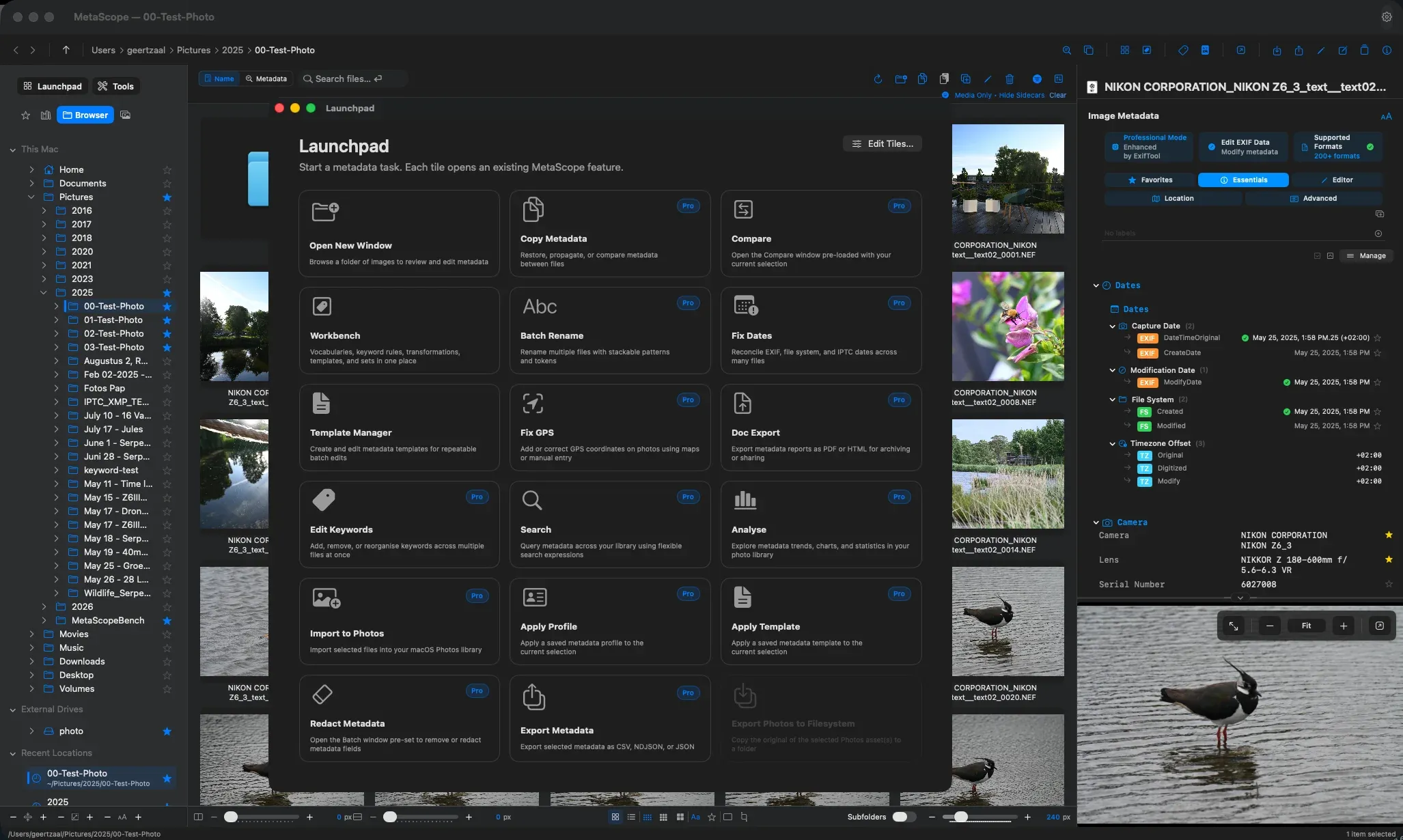
Most metadata work starts in one of two ways.
Sometimes you know where the files are.
A client folder.
An external drive.
A Photos album.
A registered library.
A project folder buried several levels deep.
Other times, you know what needs to happen.
Redact metadata.
Apply a profile.
Fix GPS.
Export files.
Edit keywords.
Compare a batch.
MetaScope v1.4.0 rebuilds the app around both of those starting points.
The sidebar becomes the place to start by location.
The Launchpad becomes the place to start by task.
Together, they make MetaScope feel less like a file browser with tools attached, and more like a working environment for serious metadata operations.
Start by location: the rebuilt sidebar
For most of MetaScope’s life, the sidebar was a source list.
Useful, but passive.
You picked a folder, moved into the grid, and did the real work somewhere else.
In v1.4.0, the sidebar becomes a first-class launching surface. It gives the left edge of the app a clearer job: help you understand where you are, what is reachable, and which folders matter to your workflow.
The new sidebar is built around four tabs:
| Tab | Purpose |
|---|---|
| Favorites | Hand-picked shortcuts |
| Libraries | Registered, indexed folders MetaScope treats as known work scopes |
| Browser | A recursive file-system tree |
| Photos | Apple Photos albums |
That separation matters.
Favorites are quick access.
Libraries are deliberate working scopes.
Browser is for navigating the file system.
Photos is for album-based work.
Each tab has a clear role, which makes the sidebar easier to reason about as your library grows.
A real file-system tree
The new Browser tab gives MetaScope a Finder-style folder tree.
It expands This Mac and External Drives recursively, loads deep folders as needed, and auto-expands to your current folder when you navigate. Each window remembers its own expansion state, so different windows can stay focused on different parts of your system.
Deep folders are not treated as temporary stops either.
Any folder you reach in the tree can be promoted into Favorites or Libraries. That means a project buried five levels down can become part of your permanent working surface without a special setup flow.
You can promote folders three ways:
- click the star on a folder row to add or remove it from Favorites
- drag a folder onto the Favorites or Libraries tab
- right-click and choose Add to Favorites or Add to Libraries
The important part is consistency.
The same grammar works everywhere, so organizing your workspace becomes part of navigation rather than a separate chore.
Libraries are working scopes, not bookmarks
v1.4.0 also replaces the old “Quick Access” idea with Libraries.
That is more than a rename.
A Library is a folder MetaScope knows about and indexes. It is a deliberate scope of work, not just a shortcut to a path.
That distinction becomes important when you are managing large collections, external drives, or repeat client and project folders. A Library says: this location matters enough for MetaScope to treat it as part of the working environment.
Libraries can be reordered, promoted from Favorites, and marked as the active configuration scope. The active library shows a clear accent indicator and persists across restarts.
If the folder disappears outside MetaScope, the app falls back cleanly instead of pointing at a missing location.
Offline folders are visible, not mysterious
A serious photo library often spans external drives, network volumes, and folders that are not always available.
Most apps handle that badly. They either hide missing locations, fail silently, or make the user guess what happened.
MetaScope v1.4.0 introduces a Lightroom-style offline grammar across Favorites, Libraries, and Browser.
When a folder is unavailable, its row dims and shows a ? badge. That can mean the drive is disconnected, permission is required, or the path is missing.
When the volume comes back, MetaScope reconnects automatically and clears the badge.
The result is simple: unreachable folders still have a place in your system. You can see them, understand their state, and trust that the app is not pretending they vanished.
The sidebar also becomes a place to act
The rebuilt sidebar is not only for navigation.
A persistent header strip gives one-click access to the Launchpad and Tools popover from wherever you are. That means batch operations are always close to the folder you are browsing.
The sidebar also becomes a drop target.
You can drag files from Finder onto Favorites, Libraries, or Browser folder rows to import them directly. External drags copy by default. In-app drags between sidebar folders move by default. Holding Command switches the behavior.
Every drop is undoable.
That makes the sidebar feel less like a static list and more like part of the workspace.
Start by task: the configurable Launchpad
The sidebar answers one question:
Where are the files I want to work on?
The Launchpad answers the other:
What operation do I want to run?
That difference is the reason the Launchpad exists.
Sometimes you do not want to hunt through menus or remember where a command lives. You already know the job: redact, export, apply, fix, search, analyse, compare.
The Launchpad gathers those operations into one task-first grid, reachable from the sidebar header strip.
In v1.4.0, twelve new tiles expand that surface:
| Apply Template | Apply Profile | Compare |
| Redact Metadata | Export Metadata | Export Photos to Filesystem |
| Edit Keywords | Search | Analyse |
| Import to Photos | Fix GPS | Doc Export |
This makes the Launchpad a much more complete command center for batch work.
Apply Template and Apply Profile now open a popover with inline progress while they work through files, so batch operations show useful feedback instead of a generic spinner.
Configure the command surface around your work
No two metadata workflows need the same tools front and center.
A photographer might want keywords, dates, compare, and search.
A digital asset manager might prioritize export, redaction, profiles, and validation.
A lightweight user might only want a few safe operations visible.
So v1.4.0 makes the Launchpad configurable.
From Settings → Interface → Launchpad → Configure Tiles, you can:
- turn individual tiles on or off
- drag tiles into your preferred order
- reset the layout to defaults
Hidden tiles move into a dimmed Hidden section instead of disappearing completely, so you can restore them later without remembering every operation MetaScope supports.
The Launchpad should show the tools you actually use, in the order you expect to find them.
Edit it where you use it
Configuration does not only live in Settings.
The Launchpad now includes an Edit Tiles… button that lets you rearrange the grid in place. You can drag tiles, hide them, reorder them, and press Done when the layout feels right.
That matters because workspace design is often contextual.
You notice what should move while you are using the surface, not while you are buried three levels deep in Settings.
v1.4.0 also handles layout conflicts carefully. If a reset happens from Settings while Launchpad edit mode is open, MetaScope shows a conflict banner instead of letting two changes quietly overwrite each other.
Small detail. Important principle.
Your workspace should not fight itself.
Updates should respect your layout
A configurable surface only works if updates do not keep breaking it.
Many apps get this wrong. You arrange a workspace around your habits, then a new release arrives and reshuffles everything to promote the latest feature.
MetaScope v1.4.0 treats user layout as intentional.
If you have never customized the Launchpad, new tiles can appear in sensible default positions.
If you have customized it, your layout stays exactly as you set it. MetaScope shows a one-time banner pointing you to Configure Tiles, where you can add the new operation yourself.
A default layout belongs to the app.
A customized layout belongs to the user.
v1.4.0 respects that distinction.
One workspace, two entry points
The sidebar and Launchpad are best understood together.
The sidebar is location-first.
The Launchpad is task-first.
One helps you get to the right files.
The other helps you run the right operation.
That gives MetaScope two clear ways into the same work.
Start with a folder when location is the anchor.
Start with a batch operation when the task is already obvious.
For metadata work, that distinction matters. Culling, keywording, fixing dates, exporting, redacting, importing, and comparing do not all begin from the same mental model.
v1.4.0 makes room for both.
Why this matters
A metadata tool lives or dies by how quickly you can get to the right files, understand their state, and take the next action without losing context.
The rebuilt sidebar gives MetaScope a stronger sense of place.
The configurable Launchpad gives it a stronger sense of action.
Together, they turn the app’s starting point into something more flexible and deliberate: a workspace where you can begin from where your files are, or from what you need to do next.
That is the real shift in v1.4.0.
Not just more controls.
A clearer way to work.
MetaScope v1.4.0 is available now. The rebuilt sidebar, Launchpad, and tile configuration are part of MetaScope’s core experience. Some batch operations launched from the sidebar or Launchpad require MetaScope Pro, which can be started from within the app.