A photo library is only as useful as your ability to find, group, reuse, and trust what is inside it.
That is why keywords matter.
They are not just labels. They are the connective tissue of a serious image library. They make files searchable. They make collections understandable. They support licensing, handoff, automation, AI workflows, and long-term portability across tools and formats.
MetaScope started as a metadata inspector.
v1.3 made it a serious keywording tool, with batch editing, portable synonyms, and a rules engine.
v1.4.0 goes further. It treats keywords as a first-class system, and gives that system one home:
The Workbench.
One window for the keyword system
Before v1.4.0, working with vocabularies, rules, transformations, custom fields, and profiles meant moving between separate windows and Settings panes.
Each tool worked, but the system was fragmented.
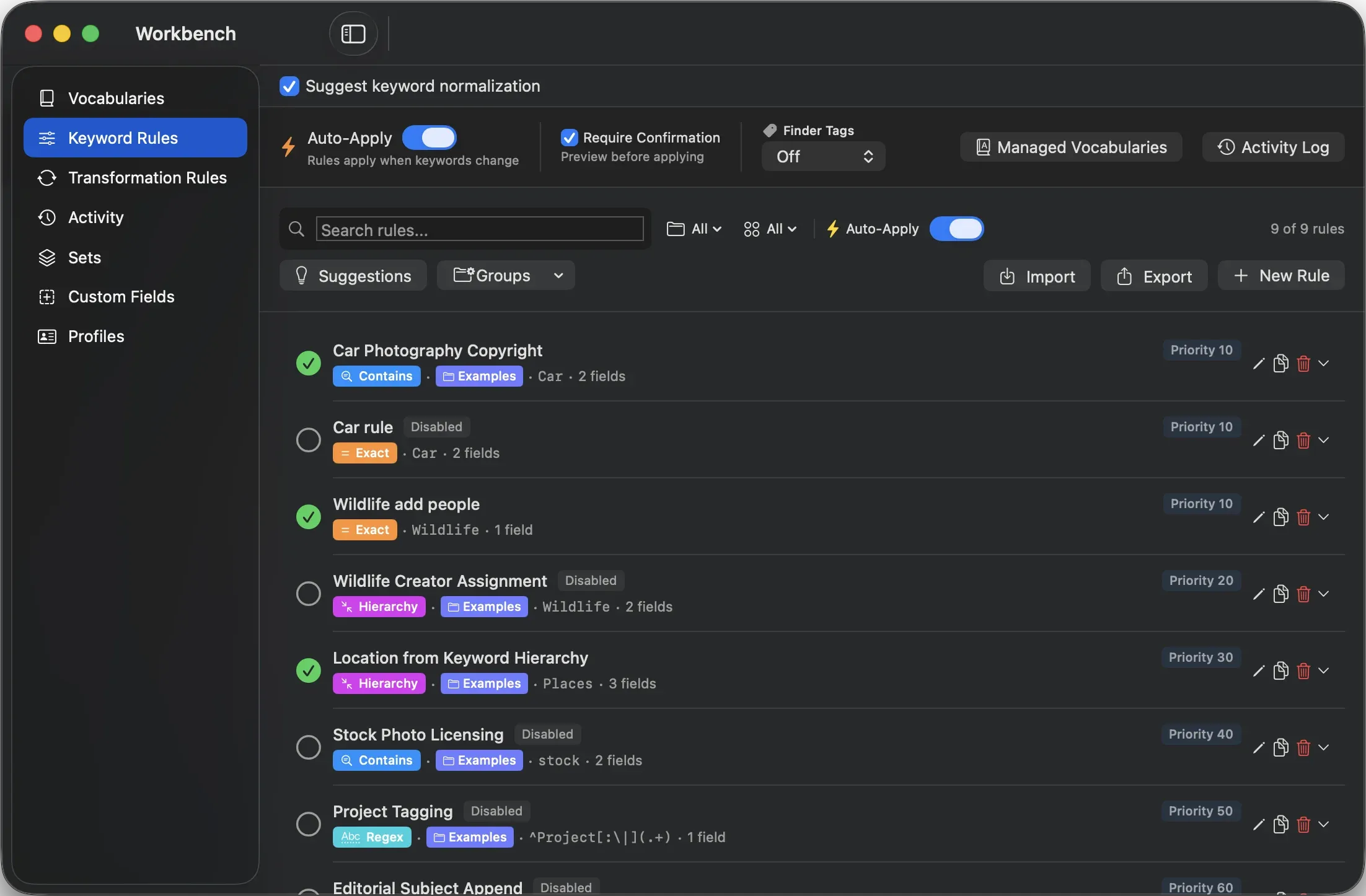
The Workbench brings those pieces together into a single tabbed window, available from:
Tools → Workbench…
It includes seven tabs, each with its own keyboard shortcut:
| Shortcut | Tab | Purpose |
|---|---|---|
| ⌘1 | Vocabularies | Browse and manage vocabulary terms |
| ⌘2 | Keyword Rules | Create, review, and apply keyword rules |
| ⌘3 | Transformation Rules | Manage keyword transformation logic |
| ⌘4 | Activity | Review what automation has run |
| ⌘5 | Sets | Manage reusable keyword bundles |
| ⌘6 | Custom Fields | Define structured metadata fields |
| ⌘7 | Profiles | Manage reusable metadata profiles |
The Workbench remembers the tab you last used, so it reopens where you left off. Existing menu shortcuts still work as aliases, so nothing you have learned gets broken.
The result is not just a tidier interface.
It changes how you move through the keyword system.
Follow a keyword from term to rule to history
The real value of the Workbench is that you can now follow a single keyword through MetaScope without losing context.
A keyword is no longer just a string attached to a file. It can have a vocabulary definition, synonyms, rules, transformations, activity history, template usage, and file usage.
v1.4.0 makes that trail visible.
From a term in the Vocabularies tab, right-click to:
- create a keyword rule for that term
- show keyword rules that use it
- show transformation rules that reference it
From a rule, you can jump to recent activity and see when it last ran.
From an activity entry, you can open the rule that produced it. The Workbench switches tabs and highlights the rule so you can find it immediately.
From a keyword chip in a template, you can jump back to the vocabulary term.
That is the important shift.
You can start with a word and trace how it behaves across the system: where it is defined, what automation depends on it, when it was applied, and how it connects back to your files.
For large libraries, that kind of traceability matters.
Search-first vocabularies
The Vocabularies tab has also been reframed around how real vocabularies behave.
Large controlled vocabularies are not small lists you casually scroll. They can contain thousands of terms, variants, synonyms, and stale entries.
So v1.4.0 makes the vocabulary browser search-first.
Faceted filters let you narrow the view to:
- active vocabularies
- terms with synonyms
- orphaned terms
- most-used terms
Orphaned terms are especially useful. They show vocabulary terms that exist in your system but are not currently used by any indexed file.
That gives you a practical way to clean up vocabularies that have grown over time.
Keyword-count badges also show both total terms and matched terms in your index, so you can see which parts of a vocabulary are actually doing work in your library.
Inspect any keyword where you see it
Keywords appear throughout MetaScope: in the info panel, Batch Keyword Editor, Vocabulary Browser, recent chips, frequent chips, and suggestions.
In v1.4.0, those chips become interactive.
Right-clicking a keyword opens the Keyword Inspector, which shows:
- its canonical vocabulary form
- its hierarchy
- whether it is orphaned
- how many files use it
- which keyword rules match it
- editable synonyms, where the vocabulary allows editing
Info-panel chips now support right-click actions such as inspect, add, remove, and copy. Double-clicking opens the Inspector directly. Hovering a chip shows its canonical form.
This makes keyword cleanup much faster.
When you see a variant, inconsistency, or unexpected suggestion, you do not have to go hunting through a separate vocabulary manager. You can inspect the term at the moment you notice it.
Control which vocabularies are active
Keyword suggestions are only helpful when they come from the vocabularies that matter to the task in front of you.
v1.4.0 adds a persistent Active Vocabulary strip to the Batch Keyword Editor. It shows the vocabularies currently driving autocomplete and rule suggestions as dismissible chips.
Click a chip to switch that vocabulary off for the session.
This is a small feature, but it solves a real problem: the moment when MetaScope suggests technically valid terms from the wrong vocabulary because that vocabulary is active.
Now you can steer the keywording context without changing your broader setup.
Categories become operational
Categories are no longer just a way to organize vocabulary terms.
They can now be used directly in keywording workflows.
In the Batch Keyword Editor, the Categories menu can stage every keyword in a category as a single batch. In the Vocabularies tab, right-clicking a category header lets you add all keywords from that category in one step.
Templates and profiles also support the {category:CategoryName} token, which expands to the full de-duplicated keyword set for that category across loaded vocabularies.
That turns categories into reusable building blocks, not just visual grouping.
Keyword Sets for repeated bundles
Some keyword combinations come up constantly.
A studio baseline.
A client-specific set.
A project tag bundle.
A standard licensing group.
A recurring subject taxonomy.
v1.4.0 introduces Keyword Sets for these repeated combinations.
In the Batch Keyword Editor, the Sets menu lets you apply a saved set or save the currently staged additions as a new set.
The Workbench Sets tab gives you full management: rename sets, delete them, edit their keyword lists, and add notes.
Sets are stored alongside your other vocabulary data, so they travel with your library.
The value is simple: repeated keyword work becomes one click instead of manual reconstruction.
Make keywords consistent across images
Keywording is often a batch problem.
When you compare related images, you frequently want their keywords to match, merge, or propagate from one file to another.
v1.4.0 adds three cross-image keyword operations to the Compare Tray:
- Equalize Keywords computes the union of keywords across every image in the tray and writes that same set to each one
- Copy Keywords → Replace overwrites a target image’s keywords with the source set
- Copy Keywords → Merge adds the source keywords to a target while preserving what is already there
Both copy actions can target one image or all other images in the tray.
All three operations are undoable. A single Cmd+Z reverts every file touched by the action.
That makes consistency work much safer, especially when dealing with sets of related images.
Custom Fields and Profiles move into the Workbench
The Workbench also becomes the new home for Custom Fields and Profiles.
That move is important because keywords rarely exist alone. They are usually part of a broader metadata structure: creator, rights, project, client, location, licensing status, internal notes, and custom fields.
In v1.4.0, Custom Fields gain stronger type handling:
- date fields use a proper date picker with ISO 8601 manual entry
- number fields accept only valid numbers
- whole-number validation is supported
- list fields with allowed values use constrained pickers
Validation has also been redesigned.
Instead of a raw regex box, custom fields now use a structured Validation Type picker:
- None
- Whole Number
- Decimal Number
- Pattern Match
- Allowed Values
A live test indicator shows whether a sample value passes validation, and an examples popover provides ready-made patterns.
Profiles also become clearer. The old overwrite and append toggles have been replaced with one Merge mode picker:
- Smart
- Fill Empty Only
- Replace All
- Append to Lists
Smart is the default. It merges keyword-style fields and replaces single-value fields such as Creator.
Old profiles upgrade automatically.
Why keyword-first matters
The point of all this is not just more keyword features.
It is a different way of treating the library.
Keywords are not an afterthought attached to files after the real work is done. For many libraries, they are the organizing layer that makes everything else possible.
v1.4.0 gives that layer a proper working environment.
You can start with a vocabulary term, inspect where it is used, see which rules depend on it, review when automation ran, apply reusable sets, manage active vocabularies, equalize keywords across related images, and connect the whole system to profiles and custom fields.
That is what keyword-first means in practice.
Not just adding tags faster.
Building a metadata system you can understand, maintain, and trust.
The other side of v1.4.0 is where your work begins: the rebuilt sidebar and configurable Launchpad, covered in Two Better Ways to Start Your Work.
MetaScope Pro is required for controlled vocabularies, batch keyword editing, keyword and transformation rules, custom fields, and metadata profiles. A Pro subscription can be started from within the app.