MetaScope 1.4.0 is now available.
This is the Keyword-First and Sidebar as Starting Point release.
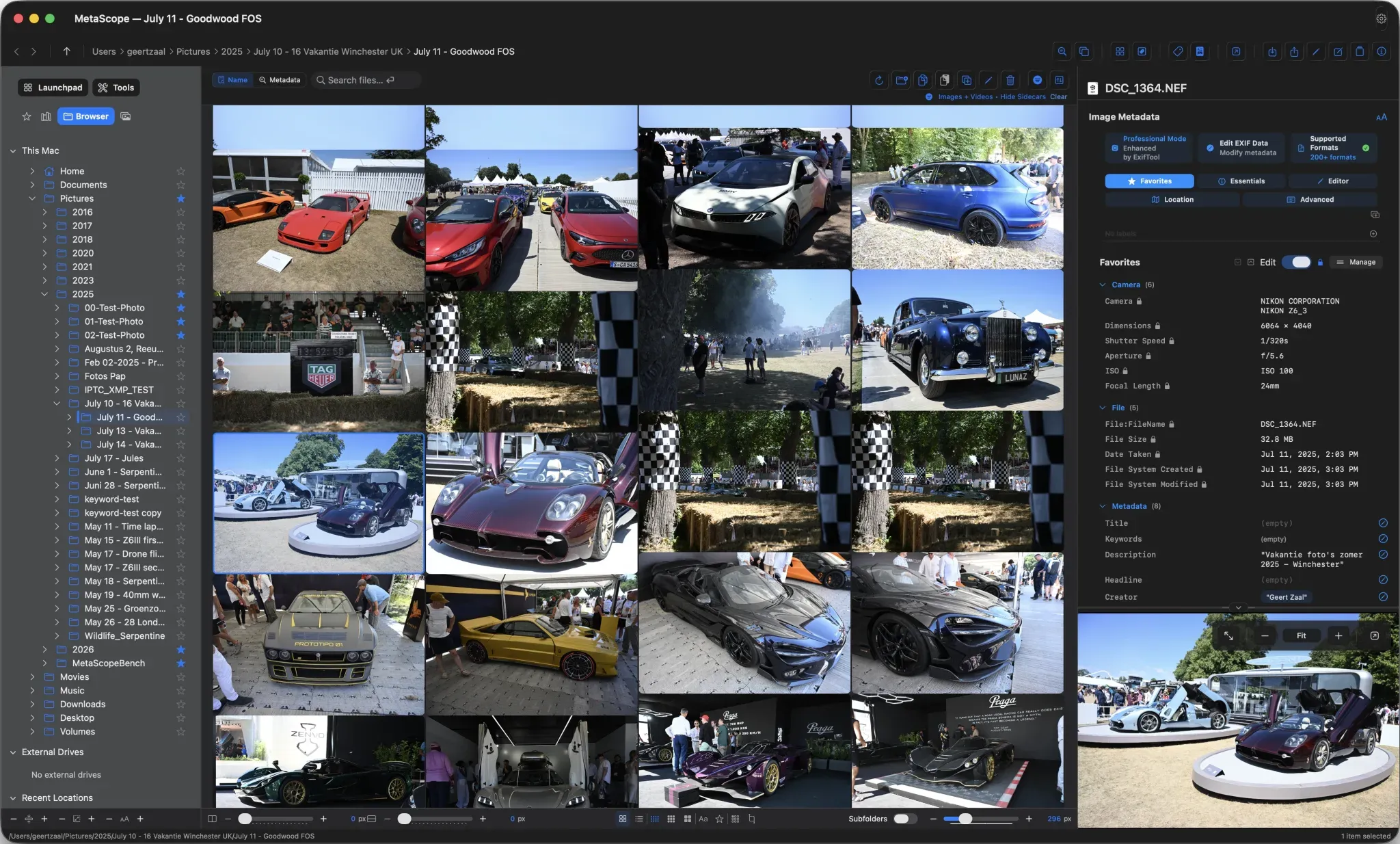
It is also the largest single-cycle UI expansion in MetaScope so far. The release introduces a rebuilt four-tab sidebar, a unified Keyword Workbench, masonry thumbnail grids, per-window footer controls, a configurable Launchpad, keyword sets, stronger Compare Tray operations, custom-field improvements, and temporal enrichment.
That is a long list.
But the direction is simple: MetaScope is becoming a calmer, more complete working environment for people who manage serious media libraries.
Metadata work is rarely a single action. It is usually a sequence. You browse, compare, inspect, keyword, correct dates, apply templates, validate fields, export records, and return to the same folders again and again. Version 1.4.0 is designed around that reality.
The sidebar becomes the starting point
The left side of MetaScope has been rebuilt as a proper workflow surface.
Instead of one mixed list, v1.4.0 introduces a four-tab sidebar:
- Favorites for the folders you return to often
- Libraries for registered, indexed folders used in ongoing metadata work
- Browser for Finder-style recursive navigation across your Mac
- Photos for working directly with the Apple Photos environment
This makes the sidebar less like a static shortcut list and more like a working map.
You can browse folders recursively, star locations into Favorites, promote folders into Libraries, and jump to a selected file’s containing folder with ⌥⌘↑. Offline or unreachable folders now use a clearer Lightroom-style grammar, dimmed rows with a ? badge, so missing drives or moved folders are easier to understand at a glance.
The sidebar also gets a persistent Launchpad and Tools strip, so common workflows stay close without forcing you to leave the folder you are working in.
For a metadata app, navigation is not decoration. It determines how quickly you can move from intent to action. That is the point of the new sidebar.
One Workbench for the keyword system
Keywords are not just labels. In professional libraries, they become structure.
They connect images to searches, exports, clients, archives, vocabularies, categories, synonyms, and rules. When keyword tools are scattered across different windows, the system becomes harder to reason about.
MetaScope 1.4.0 consolidates the major keyword and metadata-automation surfaces into one Keyword Workbench.
The Workbench brings together:
- Vocabulary Browser
- Keyword Rules
- Transformation Rules
- Activity Log
- Keyword Sets
- Custom Fields
- Profiles
Each tab is reachable with ⌘1 to ⌘7, and the selected tab persists across close and reopen.
This gives the keyword system a single home. You can inspect vocabularies, create rules, review activity, manage reusable keyword sets, define custom fields, and edit profiles without mentally rebuilding the workflow every time.
The new Keyword Inspector is available from any keyword chip in the info panel, Batch Keyword Editor, Vocabulary Browser, or suggestion chips. It shows the canonical vocabulary form, hierarchy, orphan status, usage count, matching rules, and inline synonym editing where the vocabulary source is editable.
This matters because good metadata work depends on trust. You need to know not only what a keyword says, but where it came from, how it maps, and what else it affects.
Keyword workflows get faster and more practical
Version 1.4.0 adds several features that make keyword work feel less manual.
Keyword Sets let you save reusable named collections and apply them in one click from the Batch Keyword Editor. This is useful for repeated shoots, client categories, archive patterns, event structures, or any library where the same groups of terms come back again and again.
The Batch Keyword Editor now supports staged category actions, including applying or removing all keywords from a vocabulary category in one step. The {category:CategoryName} template token expands to a deduplicated set of keywords from that category.
Rule creation also becomes more approachable. Keyword rules now have a guided three-step wizard. Transformation rules have a four-step wizard with live preview and guard conditions. Both still include an Advanced option for users who want the full editor immediately.
The goal is not to hide complexity. The goal is to make the common path clearer while keeping the advanced path available.
Browsing finally fits mixed image libraries
MetaScope 1.4.0 introduces a new Masonry thumbnail grid.
This is available in both the Filesystem and Photos browsers. Instead of forcing every image into the same shape, Masonry cells follow each image’s real aspect ratio. That makes mixed libraries, especially portrait-heavy collections, feel denser and more natural to scan.
Thumbnail quality also improves. The thumbnail size cap is now 1024 px, up from 512 px, across the file browser, Photos browser, standalone Metadata Search, and Compare Tray slider. A new Max Thumbnail Quality setting in Advanced offers 1024, 1536, and 2048 px stops.
Browsing is often where metadata work starts. Better grids do not just look nicer. They reduce wasted space, make visual scanning faster, and help users stay oriented in large folders.
Every window can now behave like its own workspace
A subtle but important change in v1.4.0 is the move toward per-window control.
Filesystem, Photos, and Sidebar surfaces now have dedicated footer toolbars. These toolbars expose the controls that matter while you are working: thumbnail size, spacing, density, view mode, filename labels, rating overlays, selection style, and cell shape.
Six grid display preferences are now per-window, including cell shape, filename labels, star-rating overlay, provider badges, horizontal spacing, and vertical spacing.
That means one window can be tuned for dense review while another stays spacious for detailed inspection. Settings still seed new windows, but changing one working window no longer forces every other window to follow.
This is a small thing with a large practical effect. Professional work often happens across several contexts at once. MetaScope now respects that more directly.
Launchpad becomes configurable
The Launchpad is now fully configurable.
You can toggle tiles on or off, reorder them by dragging, or reset to defaults from Settings or directly from the Launchpad itself.
This release also adds 12 new Launchpad tiles:
- Apply Template
- Apply Profile
- Compare
- Redact Metadata
- Export Metadata
- Export Photos to Filesystem
- Edit Keywords
- Search
- Analyse
- Import to Photos
- Fix GPS
- Doc Export
Apply Profile and Apply Template also show inline progress during multi-file operations.
The Launchpad is meant to reduce the distance between opening MetaScope and doing useful work. In v1.4.0, it becomes personal to the way you work.
Compare, dates, and reliability
The Compare Tray is more capable in this release.
You can now add files directly to the tray without pre-loading a folder. The full file-browser context menu is available from tray images, including metadata actions, keyword operations, copy and move, export, and Edit In.
Cross-image keyword operations are now available from the tray too. You can equalize keywords across all tray images, copy keywords by replacing, or copy keywords by merging. A single Cmd+Z undoes the affected files.
Date workflows also improve with Temporal Enrichment. MetaScope can derive OffsetTimeOriginal from GPS timestamps, infer offsets from GPS coordinates when timestamps are absent, or write UTC GPS timestamps from local time and offset. These paths are handled in the Date Operations panel.
External drive handling is more robust as well. For non-APFS volumes such as exFAT, NTFS, or NAS roots, MetaScope now shows a clearer Choose Subfolder prompt instead of failing silently. Security-scoped access is also more reliable across long sessions, multiple windows, external drive workflows, video preview, PDF and HTML exports, and rename operations.
Why this release matters
MetaScope 1.4.0 is not built around one isolated feature.
It is a workflow release.
The app is moving toward a clearer model:
Start from the sidebar.
Use the Workbench to manage the keyword system.
Tune each window around the task.
Use Launchpad for direct entry into common workflows.
Keep browsing, metadata editing, comparison, rules, dates, and export closer together.
That matters because metadata work rewards continuity. The fewer times you have to stop, hunt for a tool, reopen a panel, reconfigure a window, or remember where a rule lives, the more attention you can give to the actual library.
MetaScope is a native macOS app for photographers, archivists, and digital asset managers who care about accuracy, scale, and control. Version 1.4.0 brings that product direction into sharper focus.
Go deeper
Each pillar of this release has its own detailed write-up:
- Two Better Ways to Start Your Work
- Keyword-First, and the Workbench That Makes It Practical
- A Browser That Adapts to the Way You Review Images
- When Photo Timestamps Disagree, MetaScope Can Now Work Out Why
Requirements and availability
MetaScope 1.4.0 requires:
- macOS 15.4 Sequoia or later
- Apple Silicon or Intel Mac
MetaScope is available on the Mac App Store. The free tier includes 5 edits per day. MetaScope Pro unlocks unlimited edits and the full professional feature set.
Read the full v1.4.0 release notes for the complete changelog.